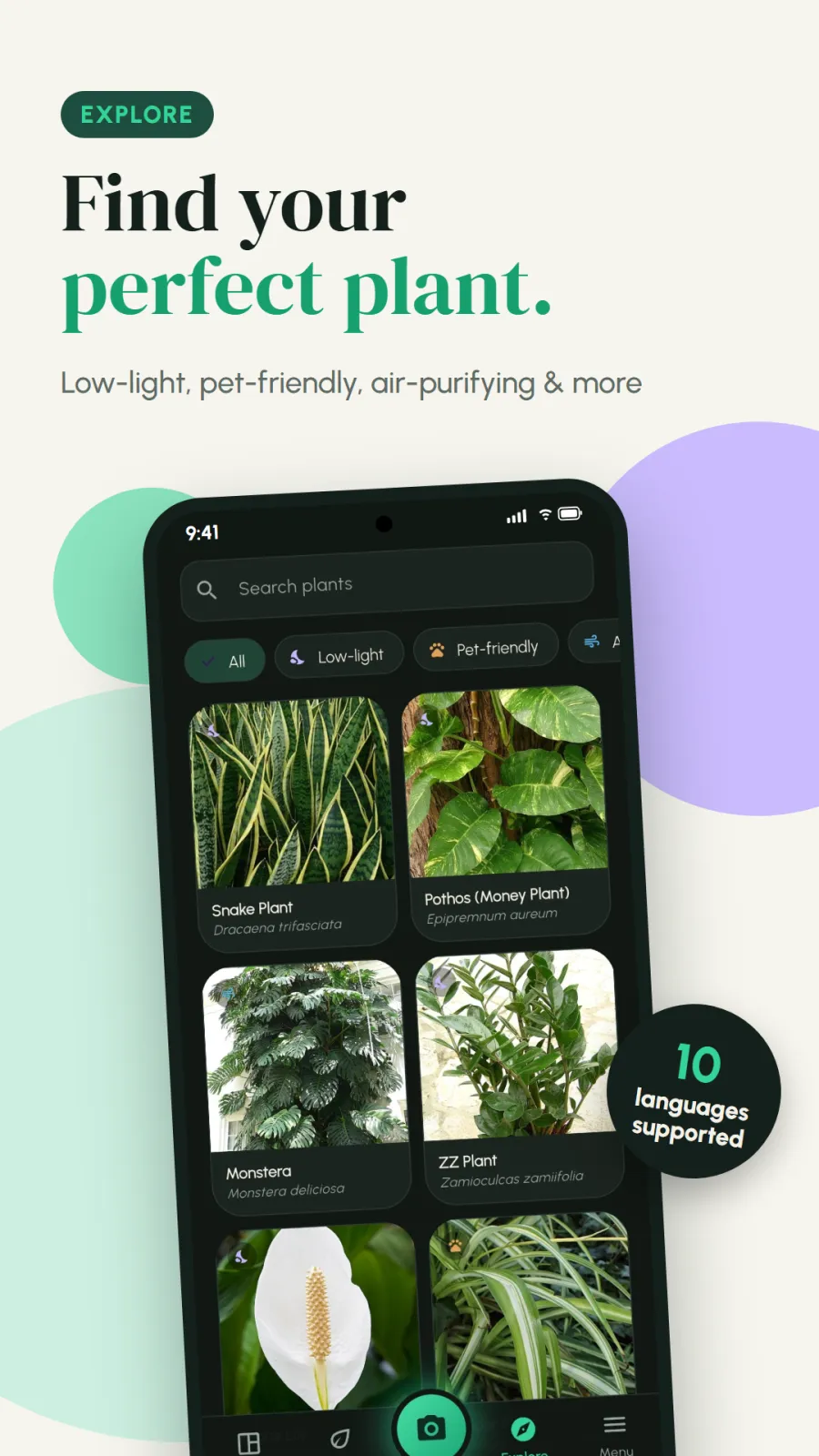
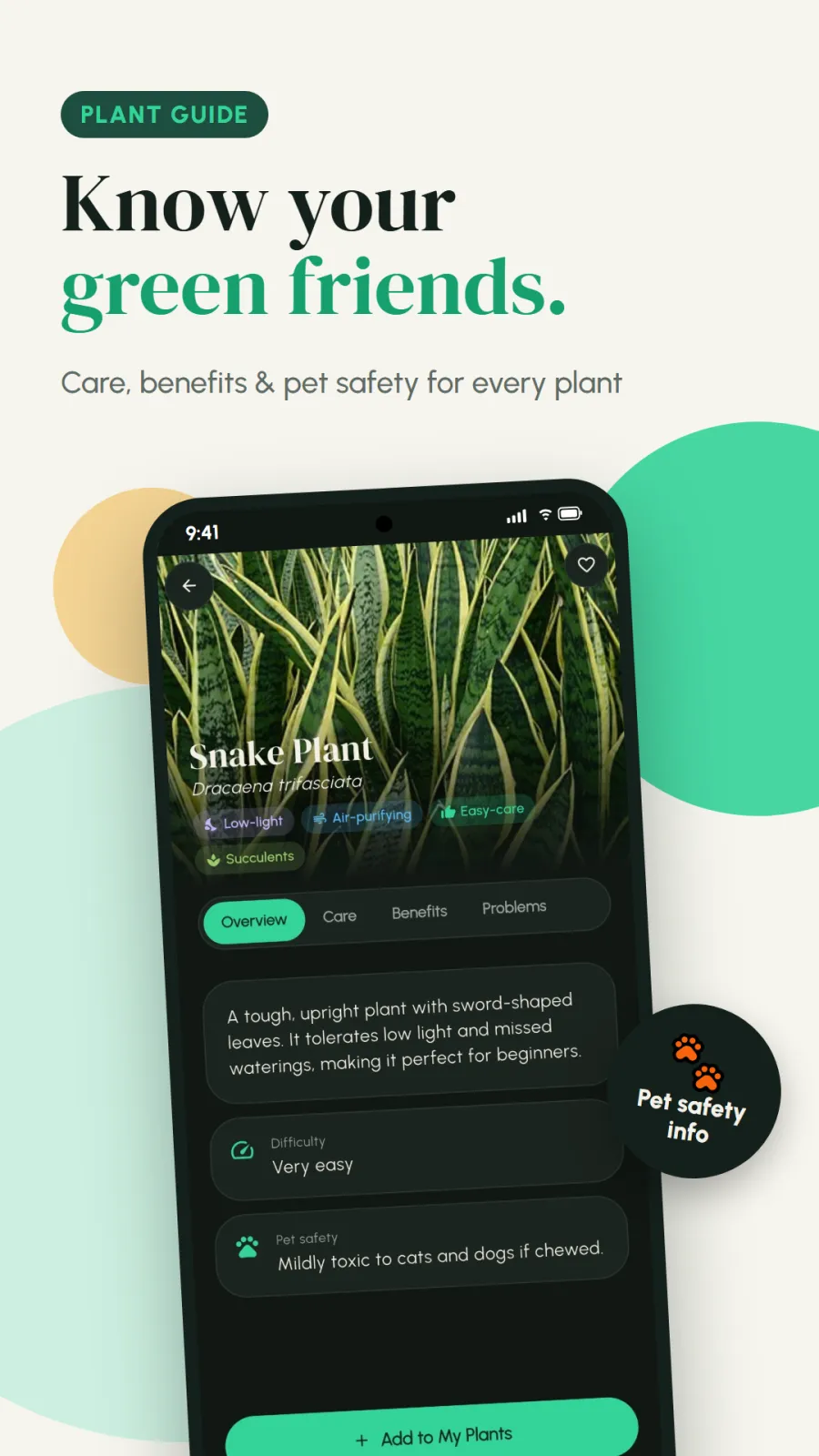
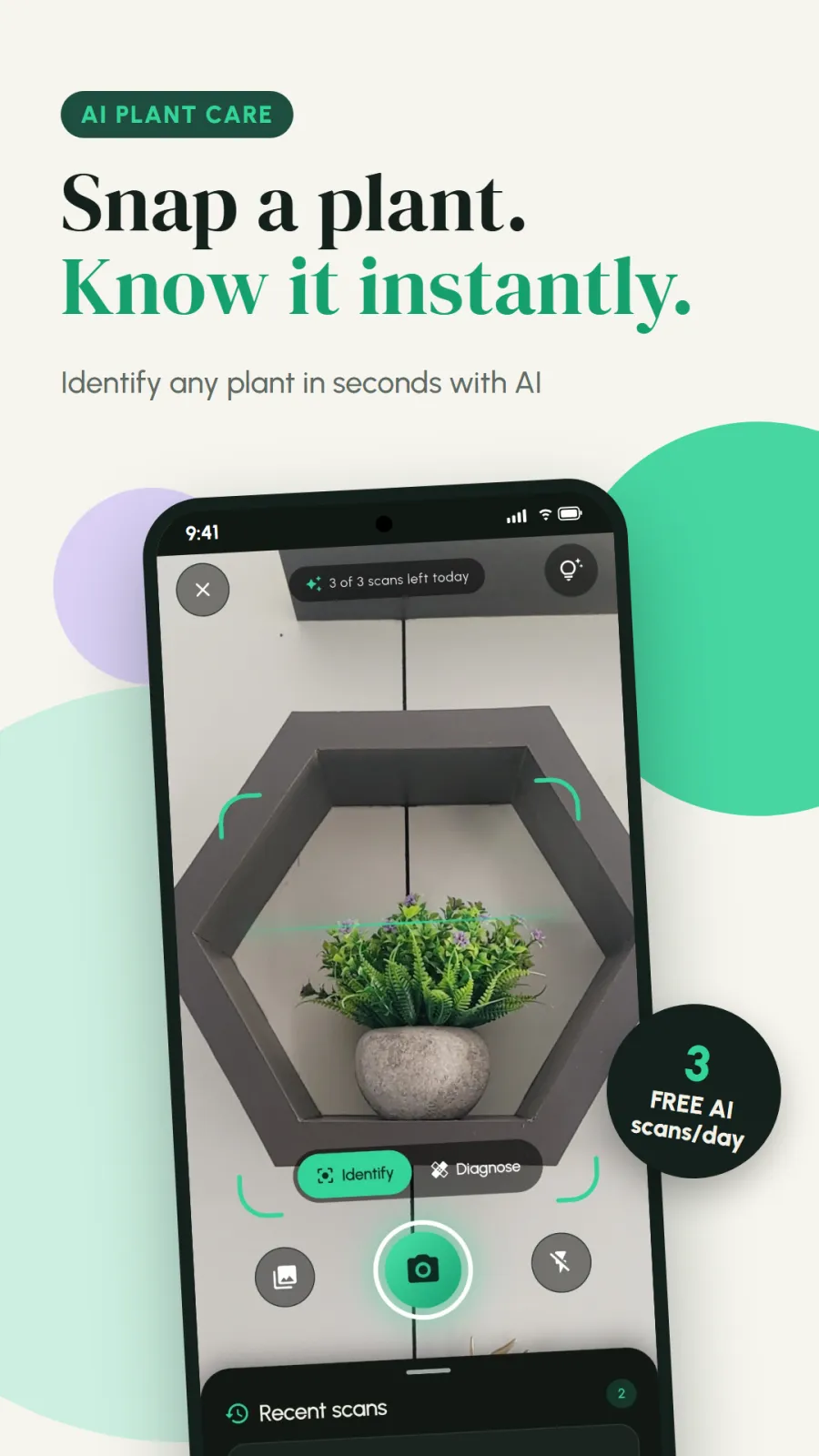
What PlantAI does on your Android phone
You searched Google for an AI plant identifier and plant care app. PlantAI is the app you need. It is available on Android through Google Play. You install it on your smartphone like any other app.
The app is called PlantAI: Smart Plant Monitor on Google Play. You can search for that exact name to find it quickly.
You point your camera at a leaf, a flower, or a tree. You take one photo. PlantAI names the species within seconds. It checks for disease or pest damage. It builds a care schedule for that specific plant.
The app is built and published by Xvantage Infotech, an app studio based in Surat, Gujarat. It is designed for Indian users who keep plants in apartments, on balconies, or in small gardens.
You do not need gardening knowledge to use it. A beginner can keep their first houseplant alive with PlantAI. You snap a picture and the app tells you what the plant is and what it needs next.
You might have tried asking friends or searching the web, but those methods take time and often give wrong answers. PlantAI gives you a direct answer from a photo. This saves you hours of research when you buy a new plant.
PlantAI combines three jobs in one app. First, it identifies the plant. Second, it diagnoses health problems. Third, it reminds you when to water and fertilize. You do not need three different apps for this.
How to identify a plant and set up care in PlantAI
Follow these steps the first time you open the app. The whole process takes less than two minutes.
- Download PlantAI: Smart Plant Monitor from Google Play on your Android phone. Tap install and wait for it to finish. The app installs quickly.
- Open the app and allow camera permission when asked. You need this to take live photos of plants. Without it, you can still upload from your gallery.
- Choose whether to take a new photo or upload one from your gallery. If uploading, allow storage access so the app can read your photos.
- Hold your phone steady in good light. Frame the leaf, flower, or tree clearly. Make sure the plant part fills most of the screen. Tap the capture button.
- Wait a few seconds while the AI processes the image. Do not close the app or switch screens.
- Read the identification result. The app shows the species name and details. It may show multiple possibilities if the photo is unclear.
- If the app detects disease or pests, it shows the symptoms and treatment recommendations on the same screen. Read them carefully.
- Tap Add to Journal to save the plant. Give it a name like Balcony Money Plant and select the room.
- Set a watering reminder. Pick the days and time that suit the plant. You can also set a separate fertilizer reminder.
- Open the care tips section. Read the light, water, humidity, and soil advice for this plant. Note down what you need to buy.
- Repeat for every plant you own. Build your digital collection over time so you always know what you have.
The five main features of PlantAI explained
PlantAI has five core tools. Each tool answers a different question you have about your plants.
Instant plant identification
You snap or upload a photo of any leaf, flower, or tree. The app uses AI to identify thousands of species within seconds. You get the common name and details on your screen.
This works for indoor potted plants, balcony creepers, and outdoor garden trees. You can identify a new plant you bought from the market or one growing in your society garden.
The identification happens fast. You do not wait minutes. You get the result in seconds so you can act immediately.
AI plant health diagnostics
Sometimes your plant looks sick. Leaves turn yellow. Brown spots appear. You do not know the cause.
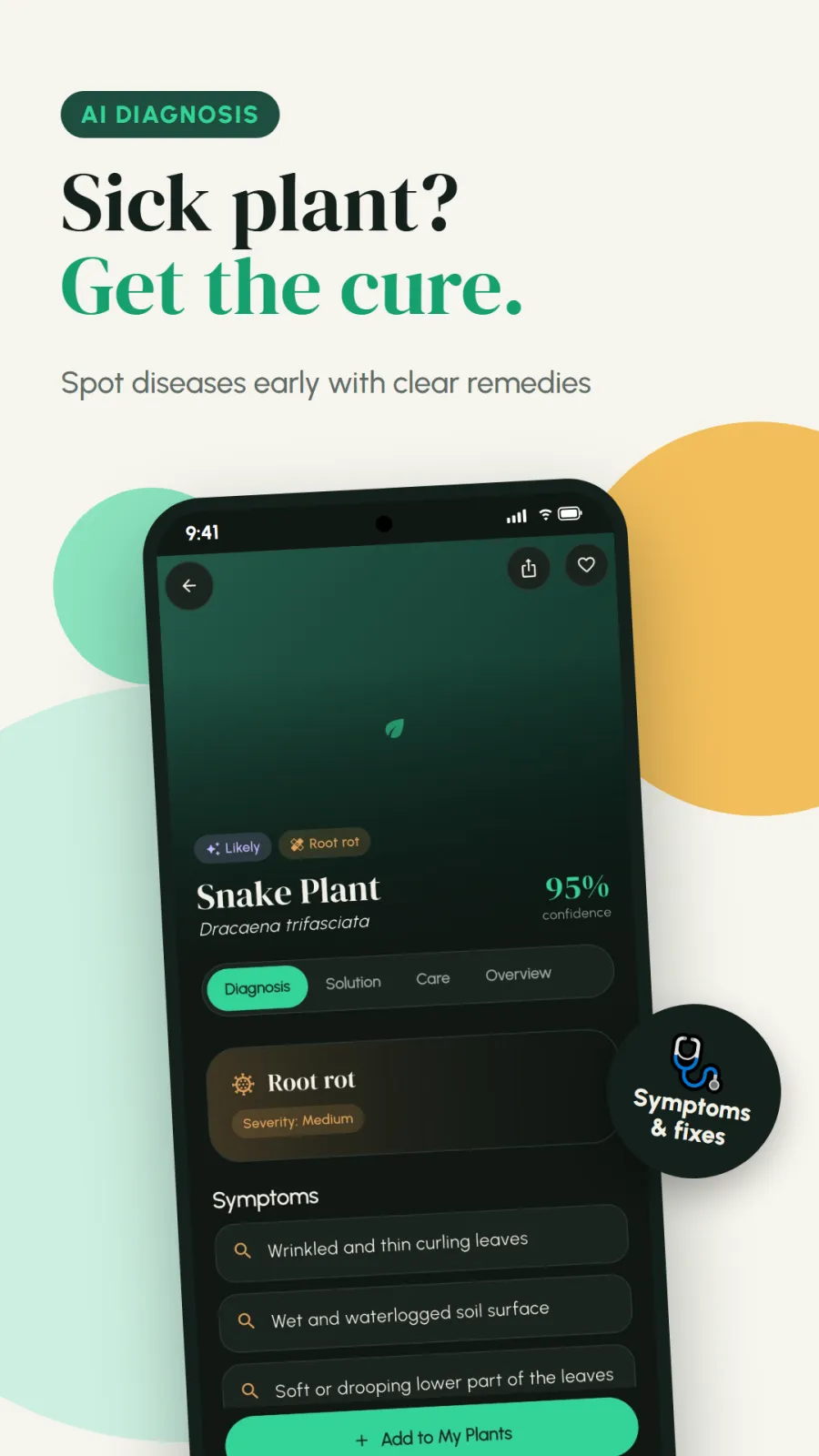
You take a picture of the damaged leaf or stem. The app diagnoses the symptoms using AI. It assesses the overall health of the plant. It gives you practical treatment recommendations.
You learn whether it is a pest problem, a fungus, or a watering issue. The app suggests what to do next. You can save these notes in the journal.
Custom care reminders
Plants die when you forget to water them. PlantAI sends reminders to your phone.
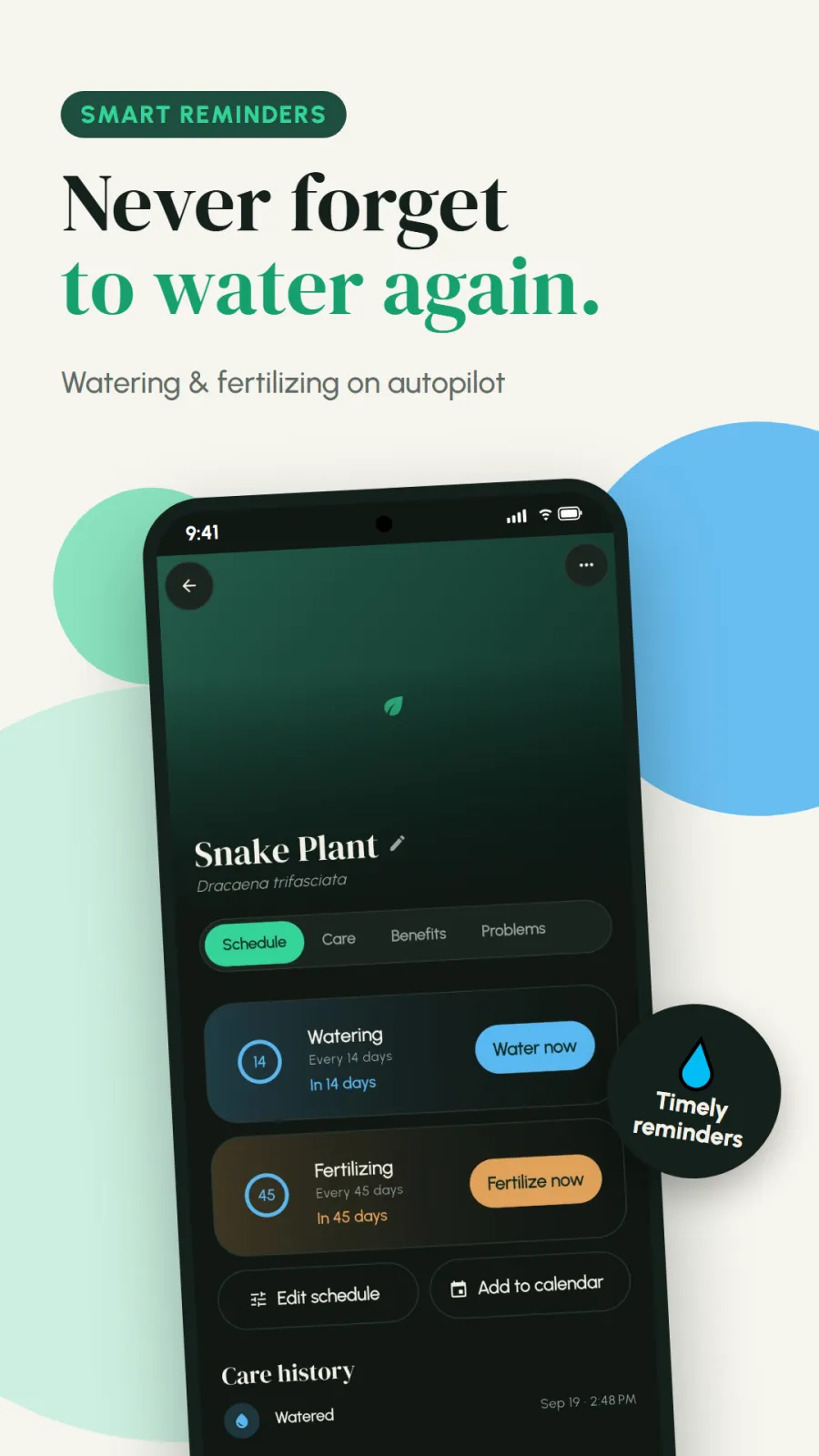
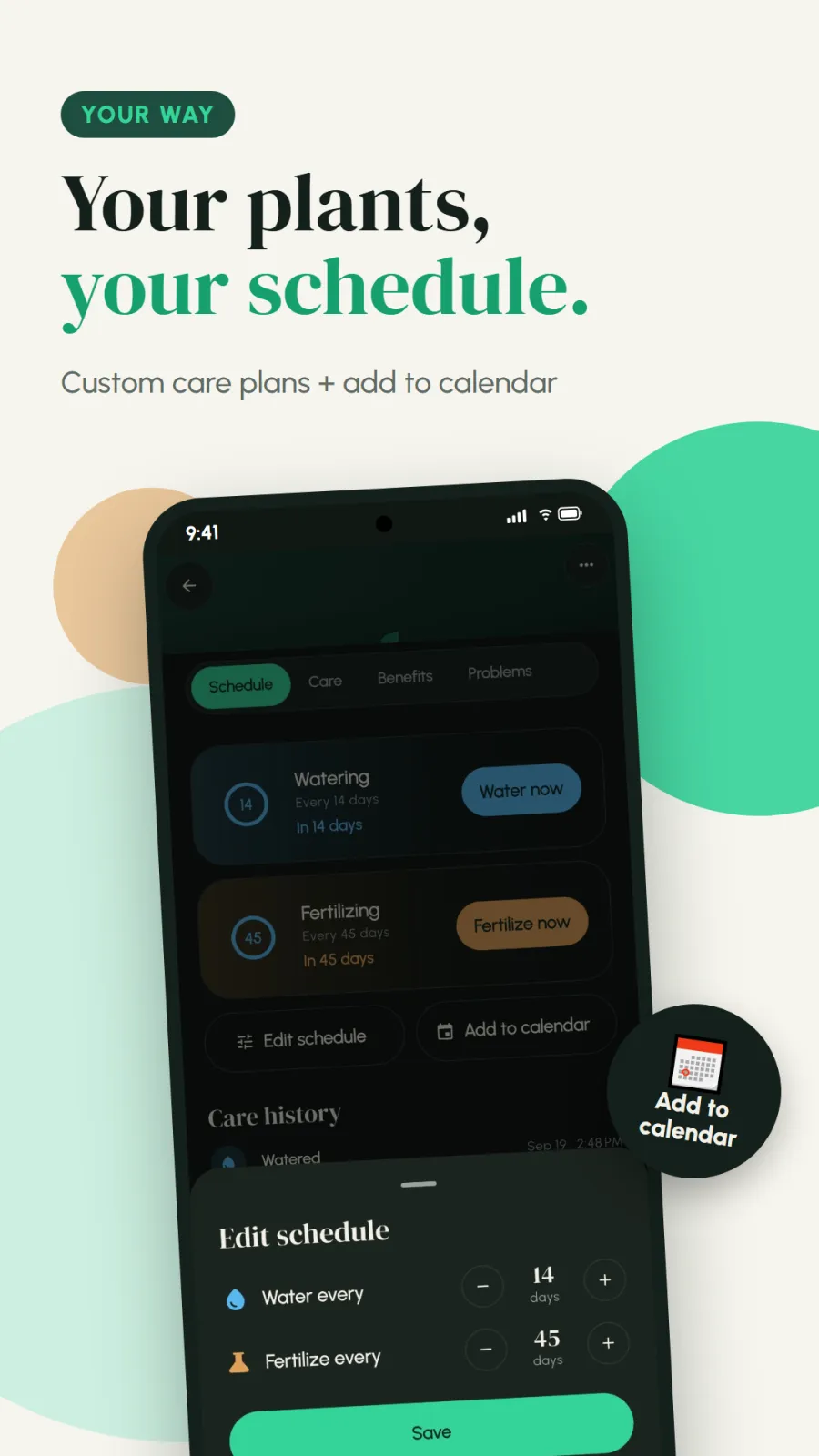
You set up intelligent, customizable reminder schedules. Each plant gets its own routine. A succulent might need water once a week. A fern might need it every two days.
You choose the days and times. The app notifies you when it is time to water or fertilize. You never forget again.
Personal plant journal and profiles
You can organize your entire collection room-by-room. If you have plants in the living room, bedroom, and balcony, you label each one.
In the journal, you track growth history. You add care notes after each watering. You record treatments when you use them. You store photos to see progress over weeks.
Everything stays in one secure place inside the app. You can scroll back and see how your plant looked last month versus today.
Expert care tips
Every plant has different needs. PlantAI gives clear guidance on light requirements. It tells you how much sunlight the plant wants.
It explains watering frequency, humidity levels, and soil preferences. These tips help your plants flourish in Indian weather. You learn whether your plant wants direct sun or shade, and how moist the soil should stay.
You can access these tips anytime from the plant profile. They guide you on when to repot, how to prune, and what fertilizer to use. This knowledge helps you keep plants healthy for years.
Four situations where PlantAI helps you
PlantAI is built for real plant owners in India. Here are four concrete situations where it saves you time and worry.
Situation one: You just bought your first houseplant from a nursery in Surat. You do not know its name. You do not know if it needs sun or shade. You open PlantAI, take a photo of the leaves, and get the species name instantly. The app gives you a care schedule. Your first plant survives.
Situation two: You have a crowded balcony with fifteen pots. You water some plants on Monday, others on Wednesday. You lose track. You add all fifteen plants to the PlantAI journal. You set different reminders for each pot. When your phone buzzes, you know exactly which plant needs water today.
Situation three: You notice strange brown spots on your money plant leaves. You fear the disease will spread to your other plants. You photograph the affected leaf in PlantAI. The AI diagnoses the problem and suggests treatment steps. You act quickly before the damage spreads to the whole pot.
Situation four: You are a gardener who keeps records. You want to track growth, treatments, and photos over months. You use the personal plant journal in PlantAI. You add notes after every care session. Later, you can show the history to a friend or a nursery expert to get better advice.
Privacy, data, and permissions in PlantAI
When you use PlantAI, you share photos of your plants. Here is exactly what happens to that data and what permissions you grant.
You need to give camera permission so you can take photos inside the app. If you upload photos from your gallery, you need storage permission. These are the permissions the features obviously require to work.
PlantAI processes your photos securely. Before the AI analyzes the image, the app strips unnecessary image metadata like EXIF data. EXIF data can include your GPS location, camera model, and the date the photo was taken, so removing it protects your privacy before the image goes to AI processing.
The app never sells your personal photos or your account information to third-party advertisers. Your plant collection stays private to you. No one else sees your photos.
You control your data. You can delete individual plants or your whole journal at any time from the app settings. Your account information is used only to provide the app features like reminders and journal storage.
For complete details on what data is collected, how long it is stored, and your rights, read the full privacy policy available in the app settings or on the Google Play store page. Xvantage Infotech publishes this policy there.
Tips to get the best results from PlantAI
The AI works better when you give it good photos. Follow these practical tips.
- Use natural daylight. Take photos in the morning or afternoon when light is bright. Avoid dark rooms and yellow indoor bulbs.
- Avoid flash. Flash creates glare on leaves and confuses the AI.
- Get close to the plant. Fill most of the frame with the leaf, flower, or stem you want to identify. Do not include too much background.
- Keep the photo sharp. Hold your phone steady or rest your elbow on a surface. Blurry images give wrong results.
- For disease diagnosis, photograph the damaged area clearly. Include the spots, yellowing, or holes. A clear close-up works better than a wide shot.
- Take multiple photos if needed. One of the leaf top, one of the stem, and one of the whole plant help the AI confirm the species.
- Update your journal regularly. After you water or treat a plant, add a note. This keeps your history accurate and reminders useful.
- Check care tips with the seasons. In Surat, summer heat changes watering needs. Adjust your reminders when weather changes.
How accurate is PlantAI and what are its limits
PlantAI uses advanced artificial intelligence to identify plants and diagnose problems. However, no AI is perfect, and plant health can be complex.
The app includes a clear disclaimer: AI-generated diagnostic and identification results are intended for general informational guidance only. This means you should treat the results as helpful starting points, not absolute medical advice for your plant.
For serious plant diseases, rare or expensive plants, or when you plan to use chemical pesticides or fertilizers, verify the information with a local nursery in Surat, an agricultural officer, or an experienced gardener. Do not rely only on the app for major decisions that could harm the plant or your health.
Always wash your hands after handling sick plants. Some plant diseases can irritate skin, and some treatments can be harmful if misused.
The accuracy improves significantly when you take clear, well-lit photos of the right plant part. If a result seems wrong, try another angle, get closer, or scan a different leaf and try again. The more you use it with good photos, the better you understand what the app can do.