What Free Anti Hacker Security catches on your Android phone
Most phone fraud in India now starts with a simple message on WhatsApp or SMS. You get a text saying "Your RTO challan is pending", "Update your KYC or your bank account will be blocked", "You have won a reward", or "Your loan is approved". The message has a link attached. You tap the link, an APK file downloads to your phone, and you install it thinking it is from a government office or your bank.
Within minutes of installing, the fake app hides its icon from your home screen. It starts reading your bank OTPs from your SMS inbox. It watches you type your UPI PIN on banking apps. It quietly empties your account. Most victims never find the app later because it is no longer visible on the home screen or in the app drawer, but it is still running in the background.
Hackers no longer need to break into your phone technically. They simply send you an app. Once you install it, they have access to your money and data. Free Anti Hacker Security closes this door. It is a free Android app available on Google Play with a 4.8 star rating. It scans your phone for hidden apps, fake APKs, and spyware that steal money, passwords, and personal data.
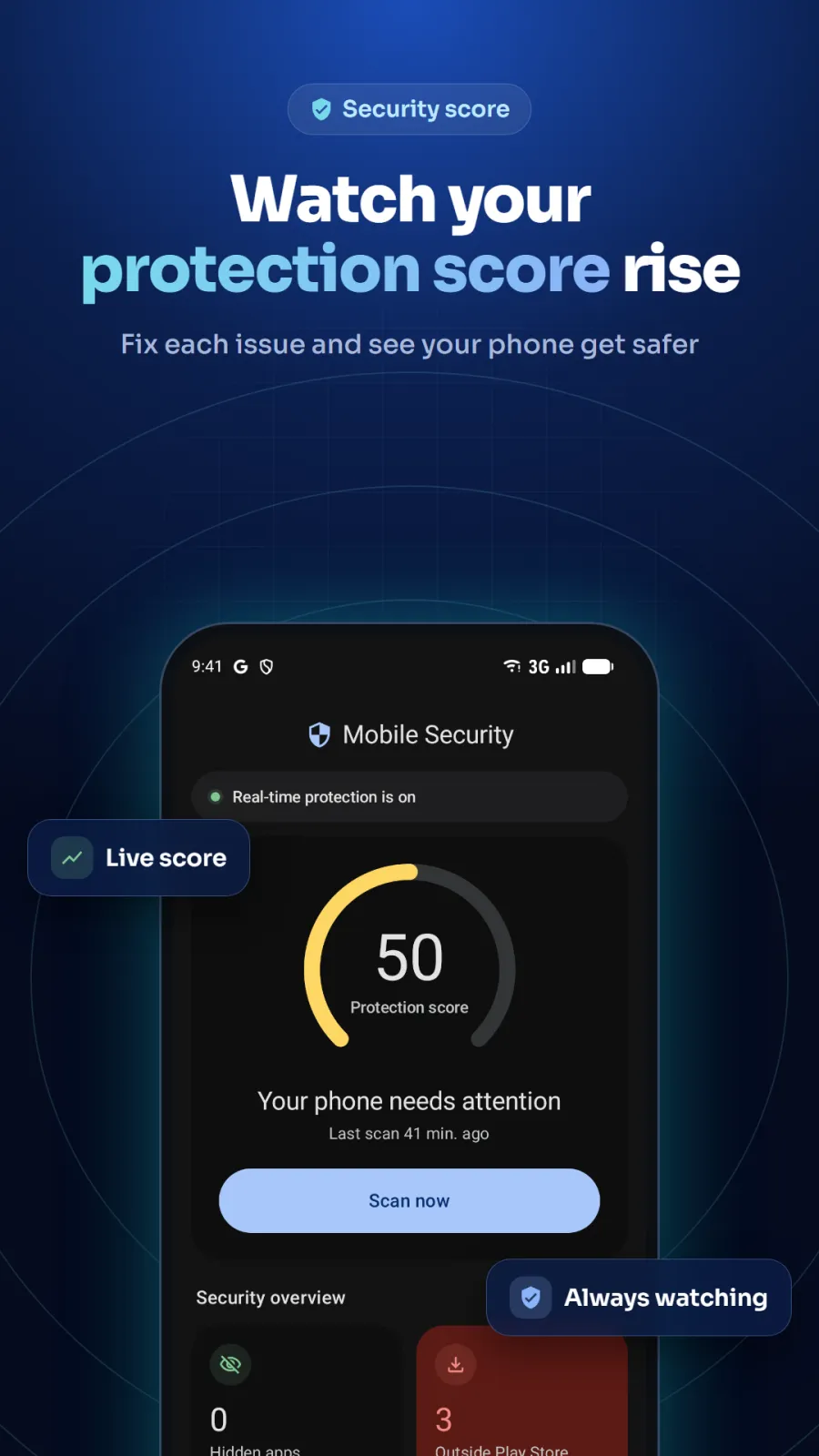
You install it once and it checks your phone in seconds. It tells you if any hacker app is already installed and hiding on your device. Then it keeps watching your phone in the background so the next risky app gets caught the moment it arrives, before it can read a single OTP.
How to scan your phone step by step
Using Free Anti Hacker Security takes only a few minutes. You do not need to create an account or sign in. Follow these steps to check your phone:
- Open the Google Play Store on your Android phone. Search for Free Anti Hacker Security and tap Install. The app is small and installs quickly. It does not ask for any account or login.
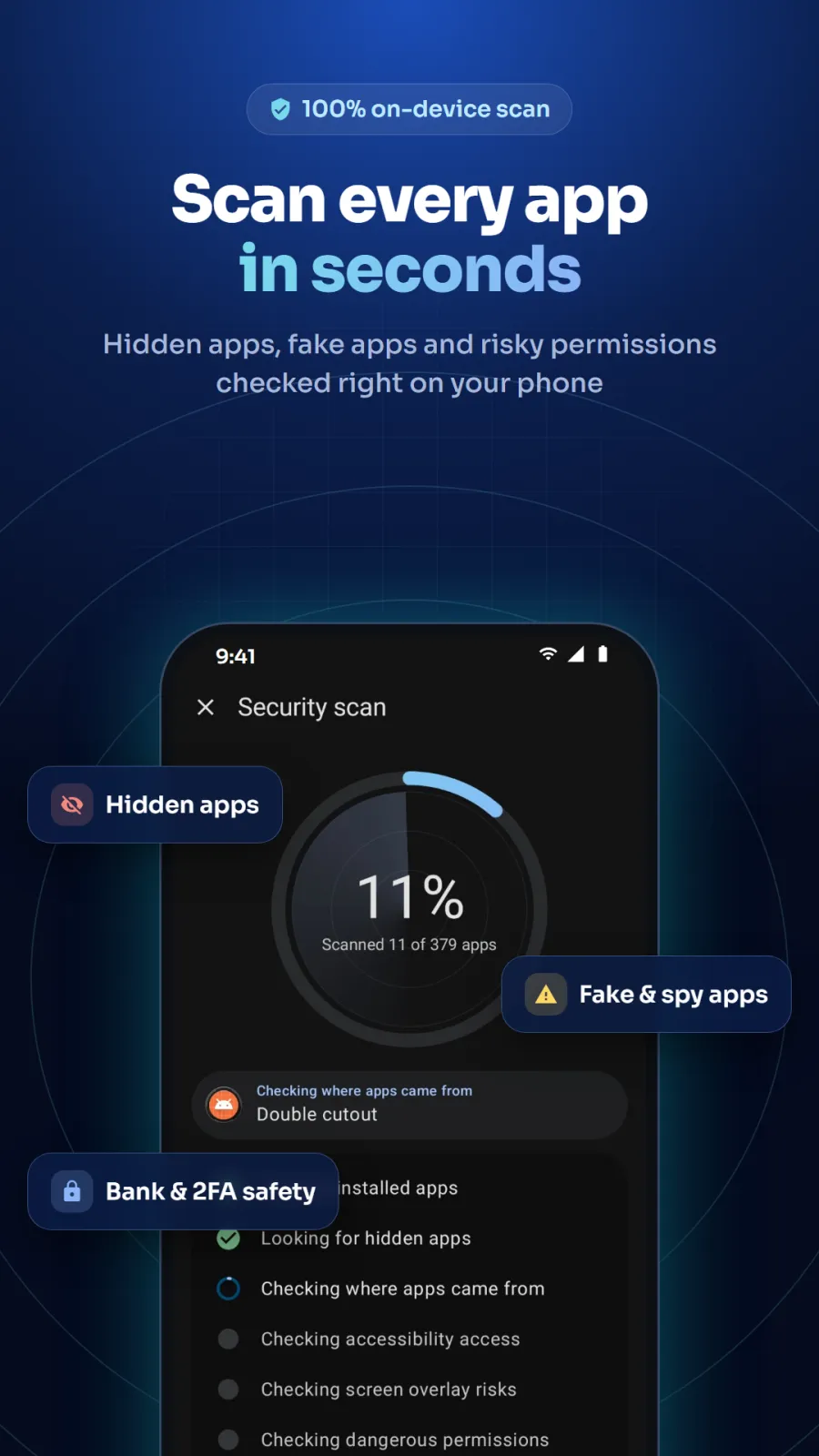
- Open the app. It immediately scans all the apps installed on your phone. The scan looks at every app, including system apps and apps installed from outside the Play Store.
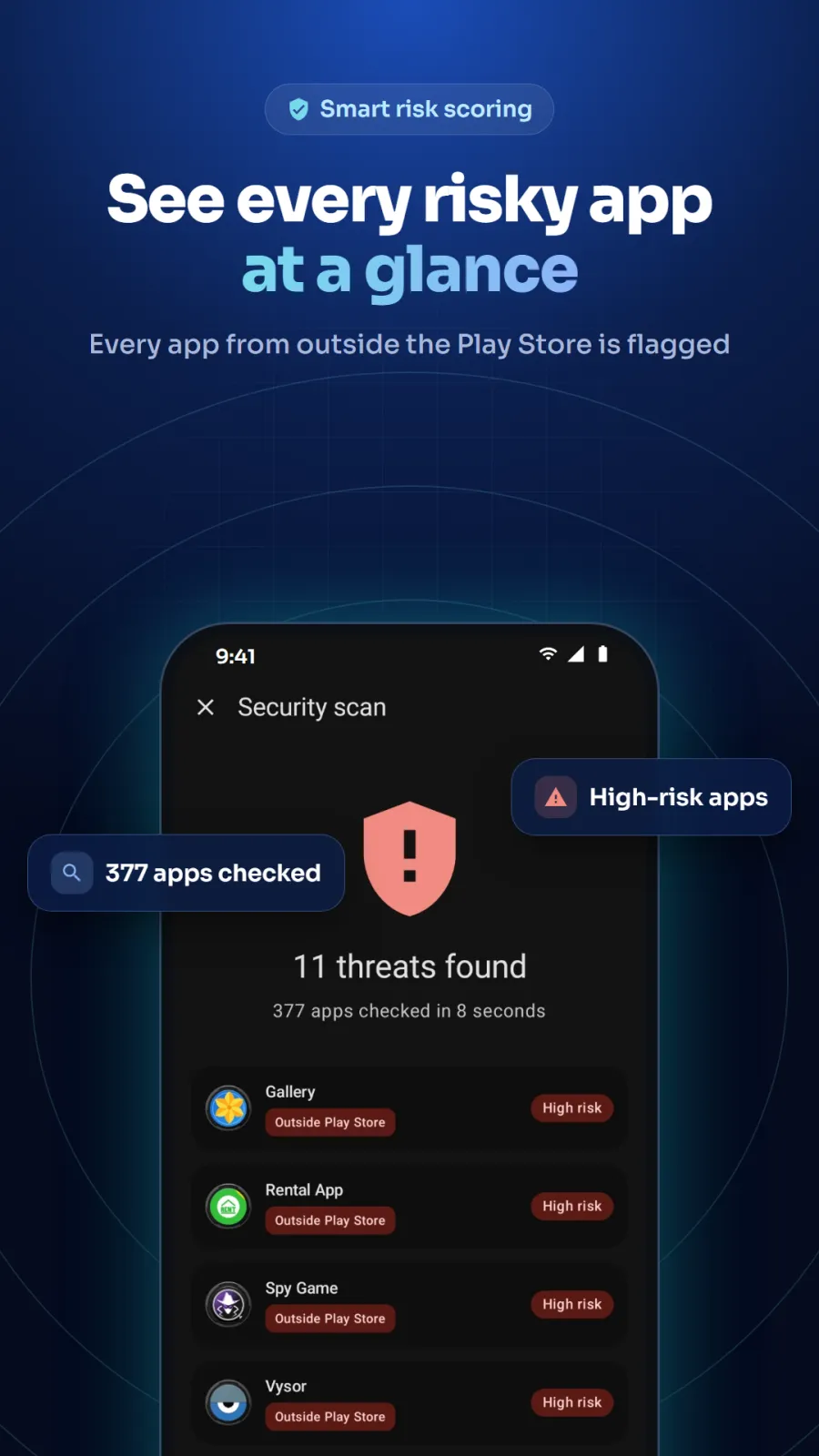
- Read the scan results carefully. The app lists hidden apps, fake apps that copy government or bank names, and apps with dangerous permissions like reading SMS or drawing over other apps. Pay special attention to apps marked as hidden or apps with names similar to banks or government services.
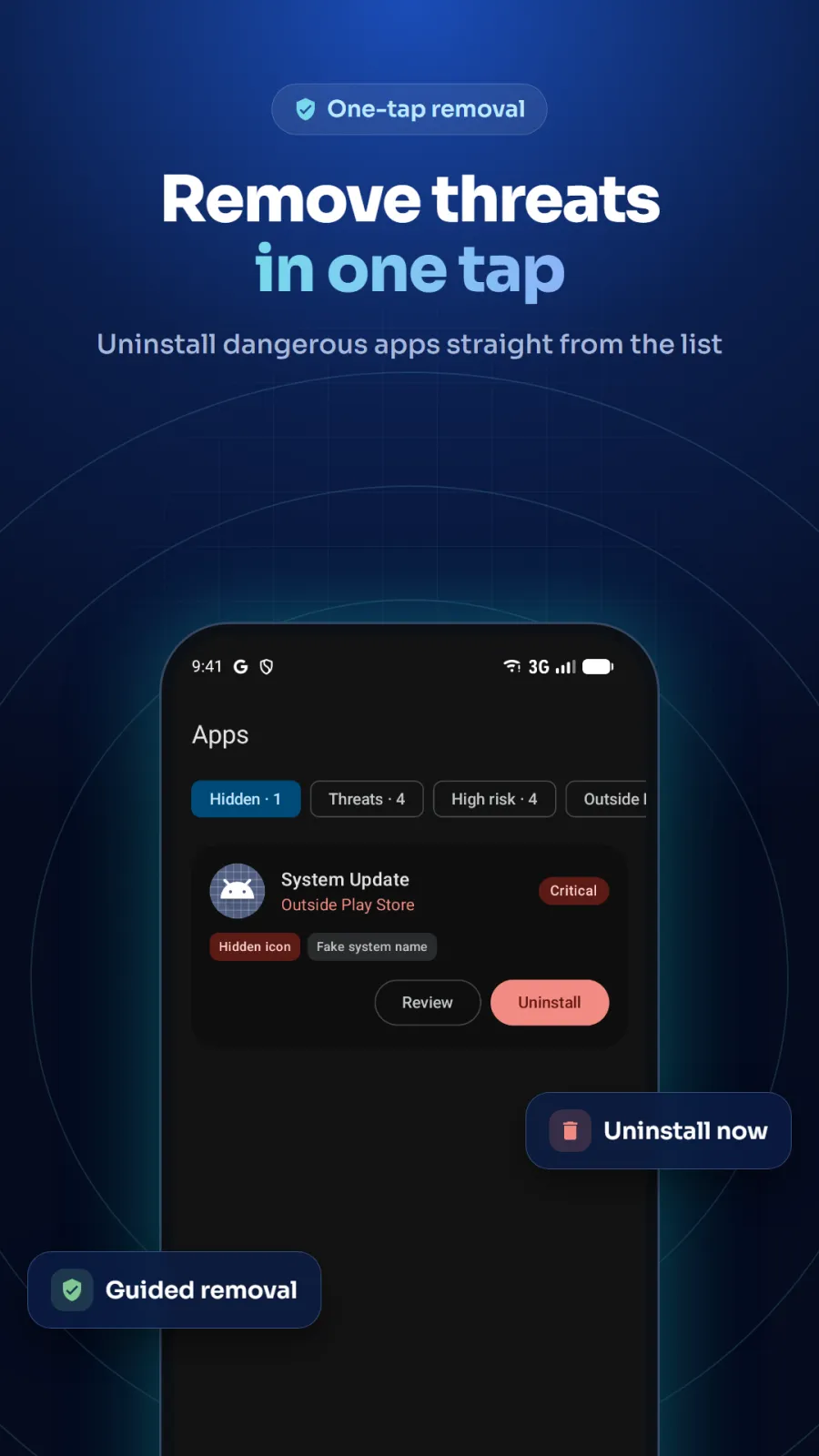
- If you see a warning about a risky app, tap the uninstall button on the warning. This removes the app with one tap. If the app blocks uninstall by becoming a device admin, follow the on-screen steps to remove its admin rights first, then uninstall.
- Go to the permissions section. See which apps can read your bank OTPs, draw fake login screens over your UPI apps, or control your phone through Accessibility settings. Remove permissions from apps that do not need them. For example, a flashlight app does not need to read your SMS.
- Run the phone security checkup. The app checks for weak spots like no screen lock, USB debugging left on, developer options enabled, or a security update older than one year. Fix each issue one by one. Set a screen lock if you do not have one. Turn off USB debugging and developer options if you do not use them.
- Leave real-time protection switched on. The app runs in the background and performs a full scan every day. It will show a full-screen warning the moment any new app from outside the Play Store is installed. You will also get a notification if a threat is found while the app is closed.
How it finds dangerous apps on your phone
Instant hack alert when a risky app installs
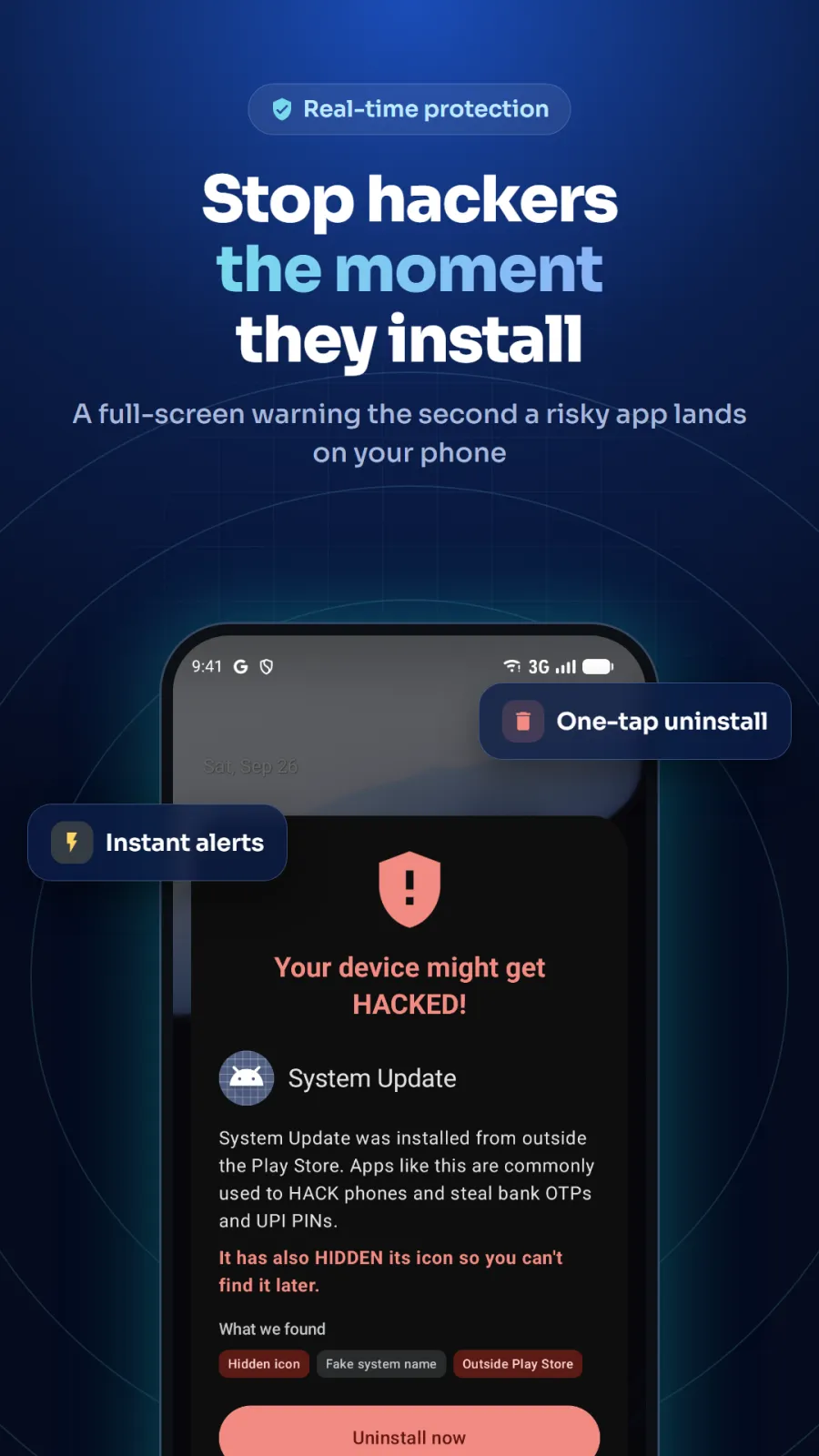
The moment you install an app from outside the Google Play Store, Free Anti Hacker Security checks it immediately. It shows a full-screen warning over whatever you are currently doing on your phone. This warning appears over any app you are using, so you cannot miss it. You see the danger before the app can read your OTPs or hide its icon. From this warning, you can uninstall the risky app with one tap without searching through your settings.
Finds hidden apps that hackers use
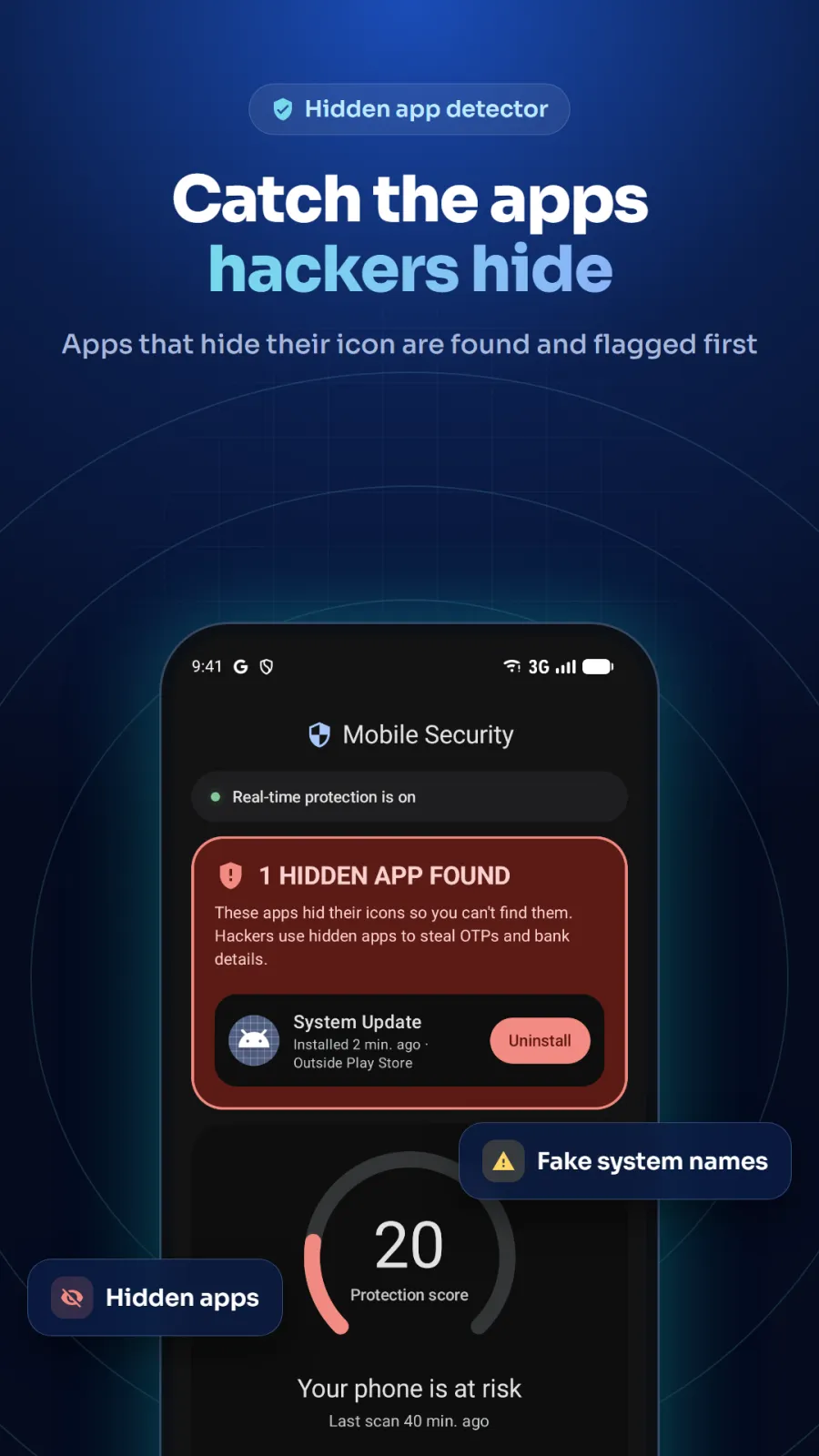
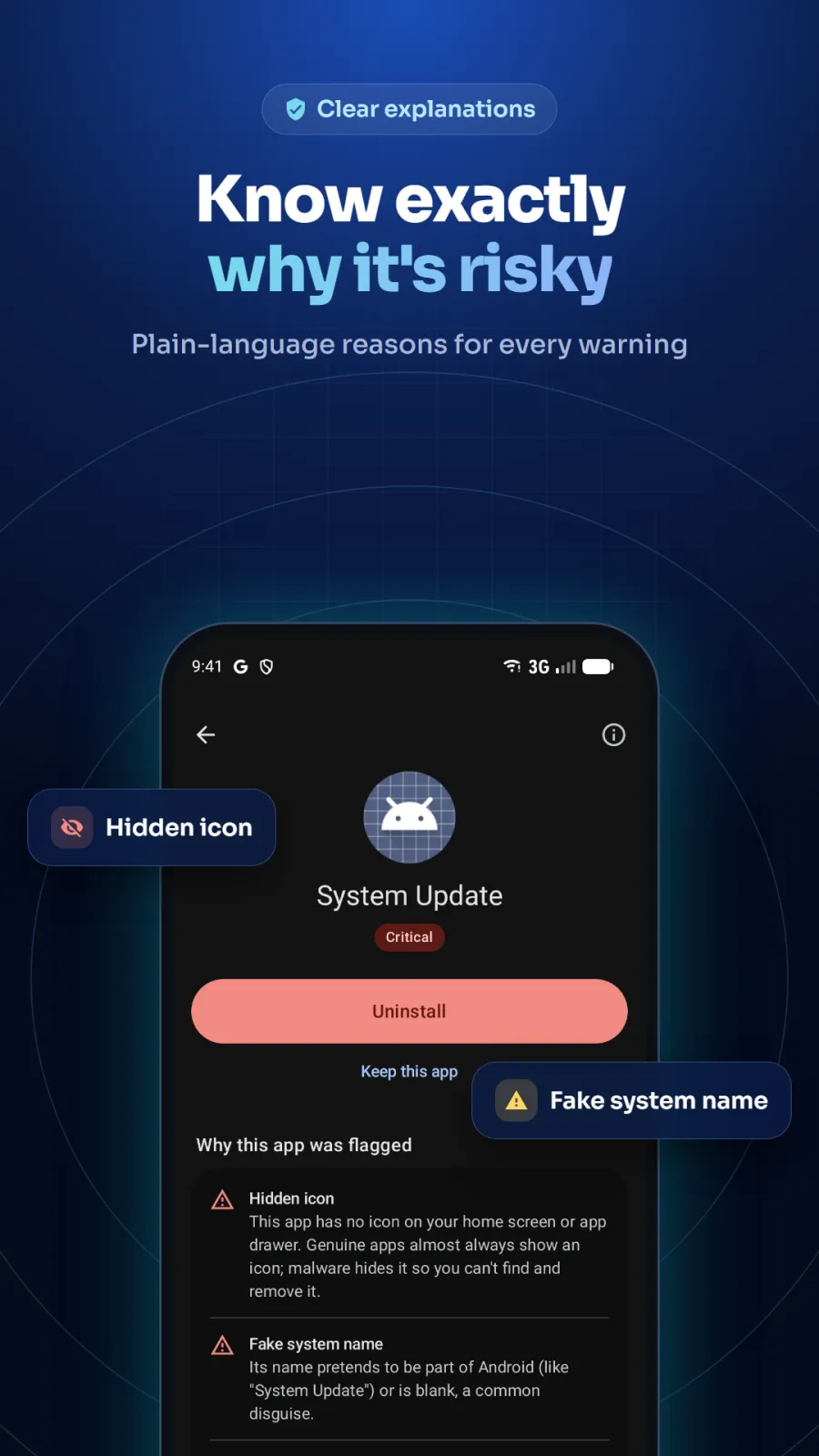
Fake RTO challan apps, KYC update apps, loan approval apps, and reward apps hide their icons so you cannot find or remove them. These apps often use names like "System Service" or have blank icons. Free Anti Hacker Security scans your entire phone and finds every hidden app, even ones with no icon on your home screen. It warns you again the moment any app tries to hide itself. The warning cannot simply be dismissed. The app keeps reminding you until you remove the dangerous app.
Detects fake and scam apps by name and behavior
Scammers copy the names of government services, banks, and Android system tools to trick you. Free Anti Hacker Security flags apps with these copied names. It compares app names against government services, banks, and Android system tools. If an app pretends to be "PNB Update" or "KYC Service" but is not the real bank app, it gets flagged. It also matches apps against known malware signatures. If an app looks like a scam, you get warned before you open it.
How it protects your money and personal data
Checks dangerous permissions
Some permissions let apps steal from you. Free Anti Hacker Security shows you exactly which installed apps can read your SMS and bank OTPs. It shows which apps can draw fake login screens over your banking and UPI apps to capture your PIN. It shows which apps control your phone through Accessibility services, which apps block their own uninstall by becoming a device admin, and which apps can install even more apps in the background without asking you. You can see this list anytime in the app. If you see an unknown app with SMS access, that is a red flag. Remove it immediately.
Stops scam APKs before they install
Most scam apps reach your phone through WhatsApp, Chrome, or a file manager that has been given the "Install unknown apps" permission. When this permission is on, any link you tap can download and install an app without asking. Free Anti Hacker Security tells you which of your apps currently have this permission. It guides you step by step to turn it off. Once you turn it off, a scam APK cannot install itself in two taps when you click a link. You must manually approve each install, which stops automatic scam installs.
Phone security checkup
The app scans your phone settings for weak spots that hackers love to exploit. It checks if you have no screen lock set, if USB debugging is left on, if developer options are enabled, or if your security update is more than a year old. These settings matter because hackers use them to gain control. For example, USB debugging can let someone access your phone if they get physical access. Old security updates have known holes that malware exploits. For each problem it finds, it gives you simple steps to fix it right away.
Real-time protection, daily scan, and one-tap uninstall
Protection keeps running in the background all day. A full security scan runs automatically every day, so you stay protected even when you forget to open the app. The daily scan catches anything that slipped through. When a dangerous app is found, you can remove it directly from the warning with one tap. The one-tap uninstall saves you from digging through settings to find the app. If a malicious app blocks its own uninstall by becoming a device admin, Free Anti Hacker Security shows you exactly how to take away its admin rights first, then uninstall it.
Who should install Free Anti Hacker Security
This app is made for Indian Android users who want to stop fake apps before they steal money. If any of these situations sound like you, install the app today:
- You received a suspicious link or APK file on WhatsApp or SMS. Maybe it claimed to be an RTO challan notice, a KYC update, or a loan approval. Install Free Anti Hacker Security and scan your phone to check if you already installed something dangerous.
- You are worried that your phone is already hacked or has spyware. Maybe your battery drains fast or you see unknown apps running. The app finds hidden apps that do not appear on your home screen but are still running in the background and reading your data.
- You are setting up a new phone for elderly parents or family members. They are the most common targets of RTO, KYC, and prize scams. Install the app on their phone and run the security checkup to lock down weak settings like no screen lock or old updates.
- You use UPI, net banking, or mobile wallets every day for payments. Free Anti Hacker Security watches for apps that read your OTPs or draw fake screens over your banking apps, so your money stays safe.
Privacy and permissions
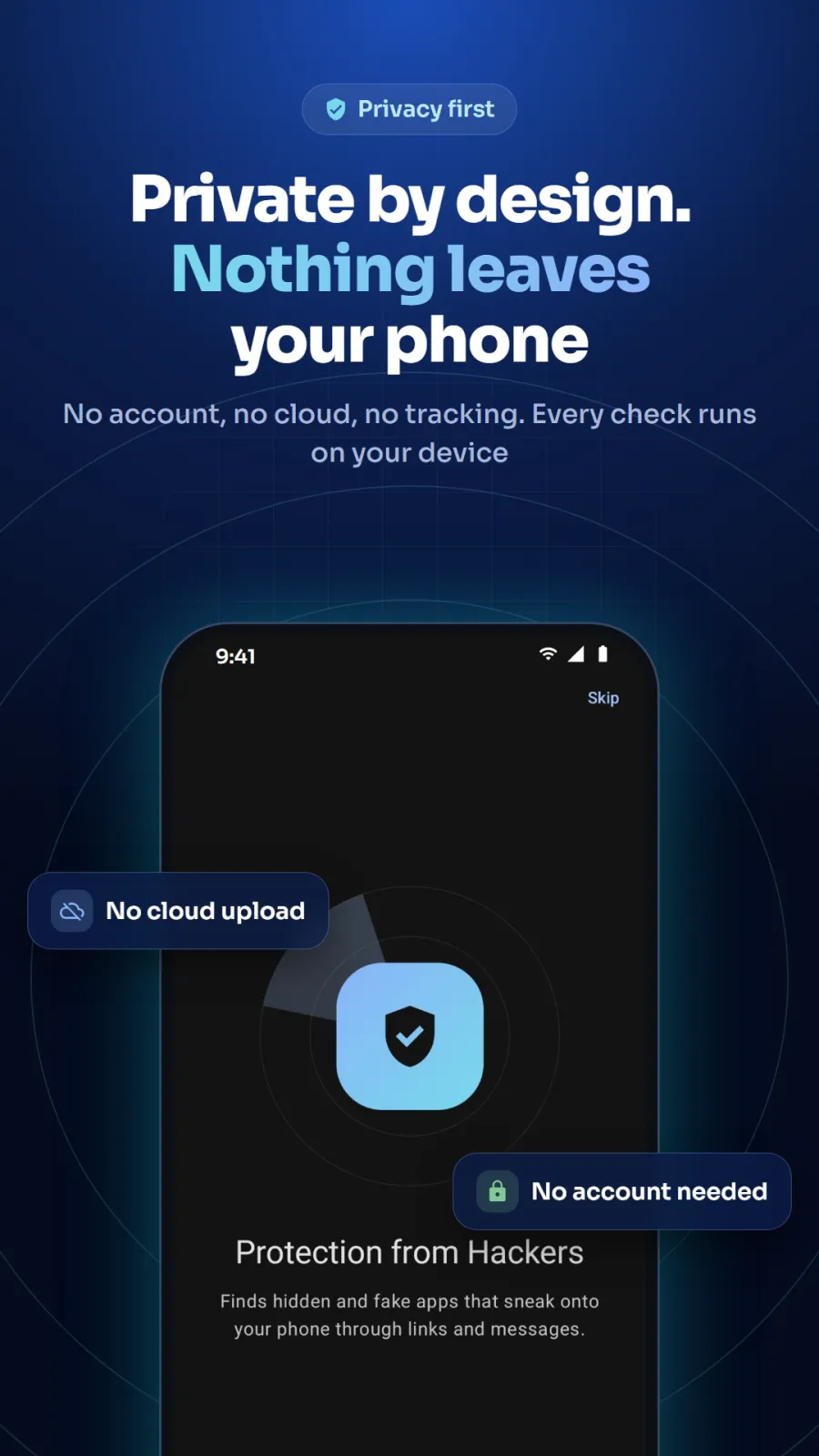
Free Anti Hacker Security is completely free to use. It has no ads, no in-app purchases, and no sign-up process. You do not need to give your phone number or email. The app works completely offline. It has no internet permission and never uploads your apps or personal data to any server. All checks run directly on your phone. Because it works offline, it also works in areas with poor network. You do not need WiFi or mobile data for it to protect you.
To protect you, the app needs these four permissions:
- See all installed apps: so it can find hidden and fake apps on your phone.
- Display over other apps: so it can show the full-screen hack warning the moment a risky app is installed.
- Notifications: so it can alert you about threats even when the app is closed.
- Run in the background: so real-time protection stays on all day and the daily scan runs automatically.
Your data never leaves your phone. The app does not collect your personal information, your messages, or your banking details. It only looks at app names, permissions, and behaviors to spot threats. Details about data handling are in the privacy policy.
Tips to avoid scam APKs on your phone
Free Anti Hacker Security catches threats after they arrive, but you can also stop them before they install. Follow these practical tips:
- Never install APK files sent on WhatsApp or SMS, even if the message looks official. Real RTO challans, bank KYC updates, and government rewards never come as APK files. If a message pressures you to act immediately, like "account will be blocked in 24 hours", do not tap the link. Call your bank directly using the number on the back of your card.
- Turn off the "Install unknown apps" permission for WhatsApp, Chrome, and your file manager. Free Anti Hacker Security shows you exactly which apps have this permission and guides you to turn it off.
- Check your app drawer every week for apps you do not remember installing. Hidden scam apps often have blank icons or names like "System Update" or "Service".
- Keep your Android security patch updated. Free Anti Hacker Security flags phones with security updates older than one year, which are easier to hack.
- If you already installed a suspicious app, do not panic and do not try to delete it manually if it hides. Open Free Anti Hacker Security, run a scan, and remove it from the warning screen with one tap.
- After installing Free Anti Hacker Security, run the checkup once a month to make sure no new weak settings have appeared.