What is Keepfolio?
You buy a new phone, a refrigerator, or a mixer. The shop gives you a paper receipt and a warranty card. You keep them in a drawer. Months later, the appliance stops working. You search for the bill. The ink has faded. The warranty card is missing. You do not know the serial number. You cannot claim the repair.
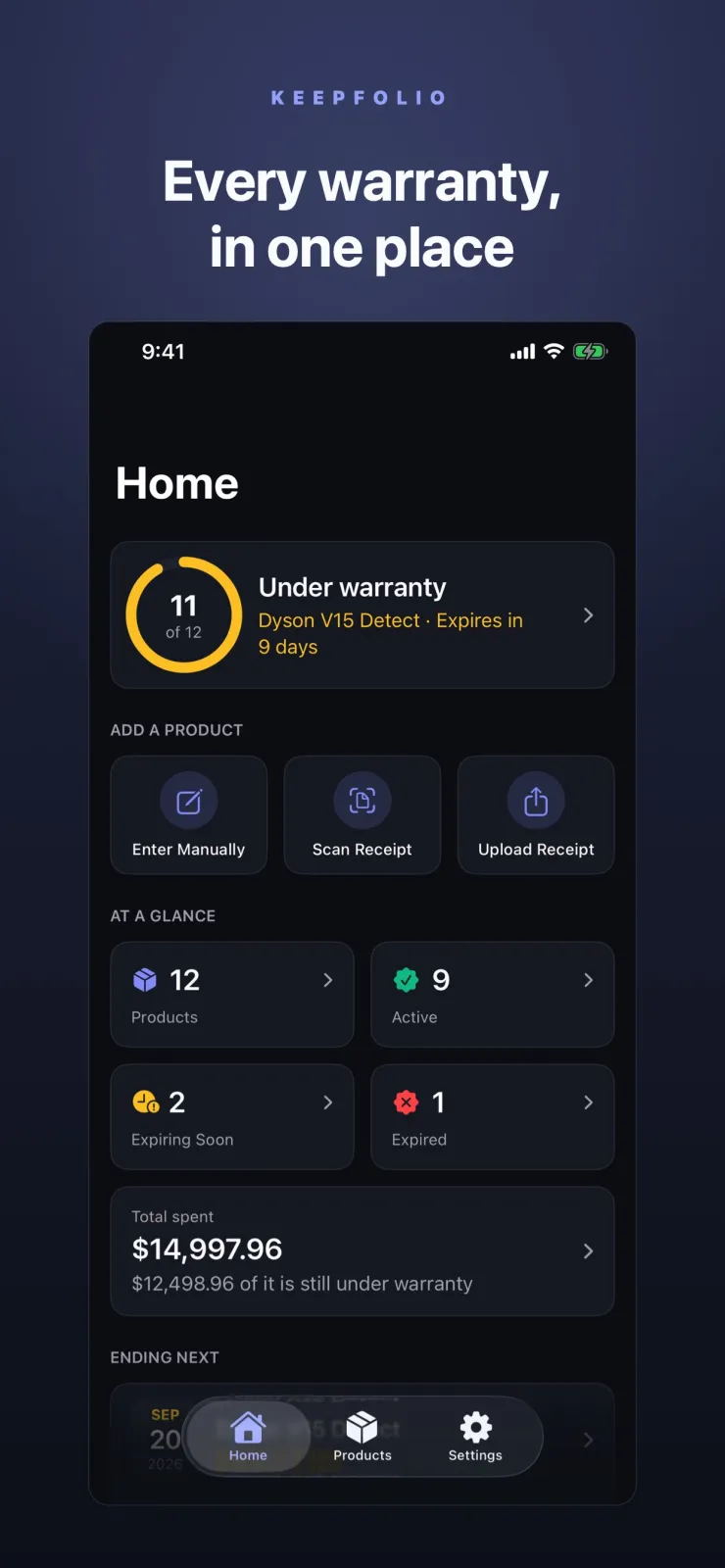
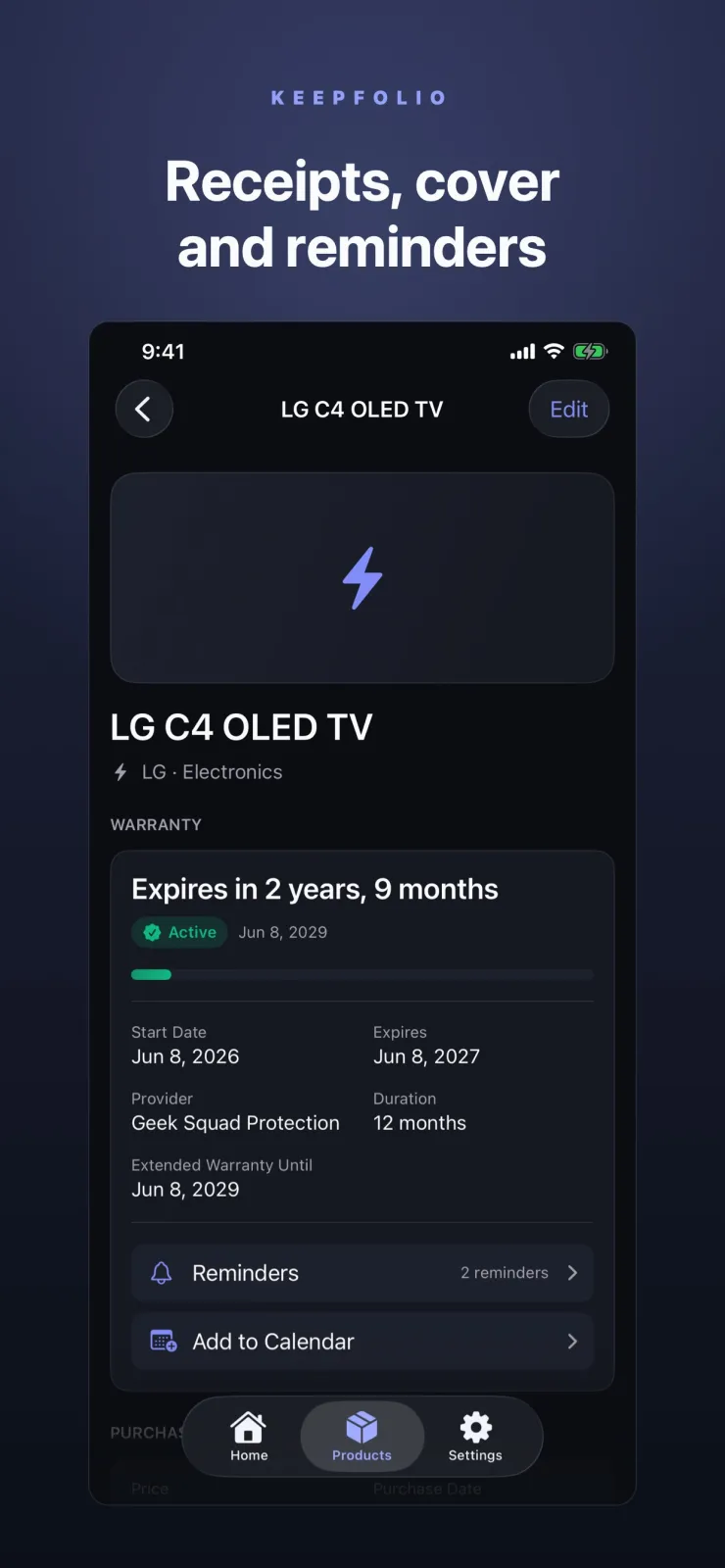
Keepfolio is a warranty and receipt tracker app that solves this problem. It runs on iPhone and iPad. You store every purchase in one place inside the app. Each item gets its own entry with the invoice, serial number, manual, purchase date, and warranty end date.
The app sends you a reminder before the warranty expires. You can scan paper receipts with your camera. You can attach PDFs. You can search everything instantly. Keepfolio works offline. Your data stays on your device.
Keepfolio is made by Xvantage Infotech, an app studio based in Surat. It is available on the App Store for iOS and iPadOS devices.
Unlike complex inventory tools, Keepfolio is built for personal use only. You do not need to create accounts or set up categories. You just add what you own. The app focuses on calm utility. It helps you file insurance claims, request repairs, or recall purchase dates without digging through old papers.
When you need to prove you bought something, or check if the warranty is still valid, you open Keepfolio. The information is there. The documents are attached. The reminder has already told you when coverage ends.
How to use Keepfolio step by step
Getting started takes only a few minutes. Follow these steps to set up your first item.
- Download Keepfolio from the App Store on your iPhone or iPad. Install it and open the app.
- Tap the button to add a new item. Type the name of the product you bought, such as 'Samsung refrigerator' or 'HP laptop'. That name is all you need to create the entry. You can add more details now or later.
- Fill in the details when you have them. Add the purchase date, the name of the store, the serial number from the box, and any notes. You can type these in any order.
- Attach the documents. Tap to scan the receipt or warranty card using your device camera. The app uses VisionKit to capture the page. You can also import a PDF or image from your Files app or photo library.
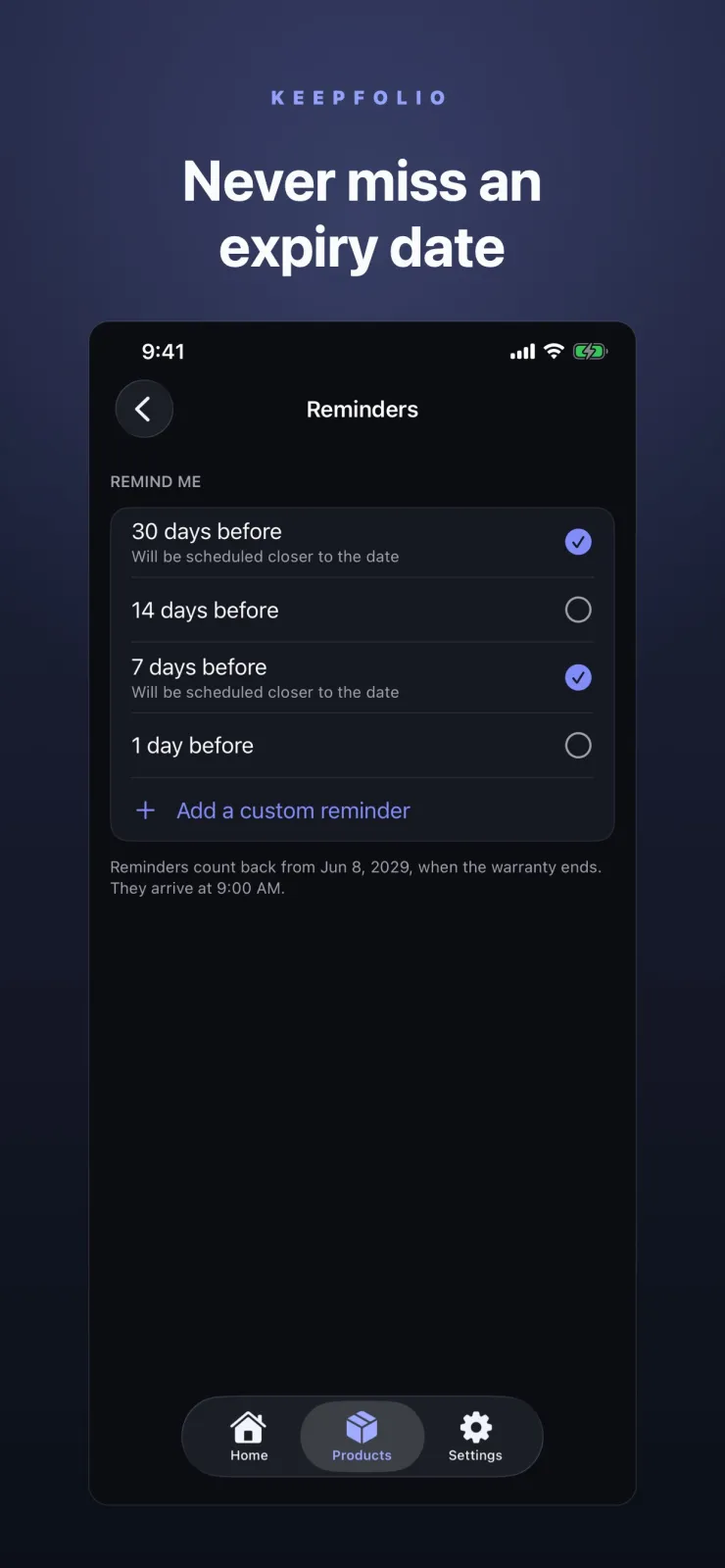
- Set the warranty expiration date. Enter the date when the coverage ends. Keepfolio will send you a notification before that date so you can act in time.
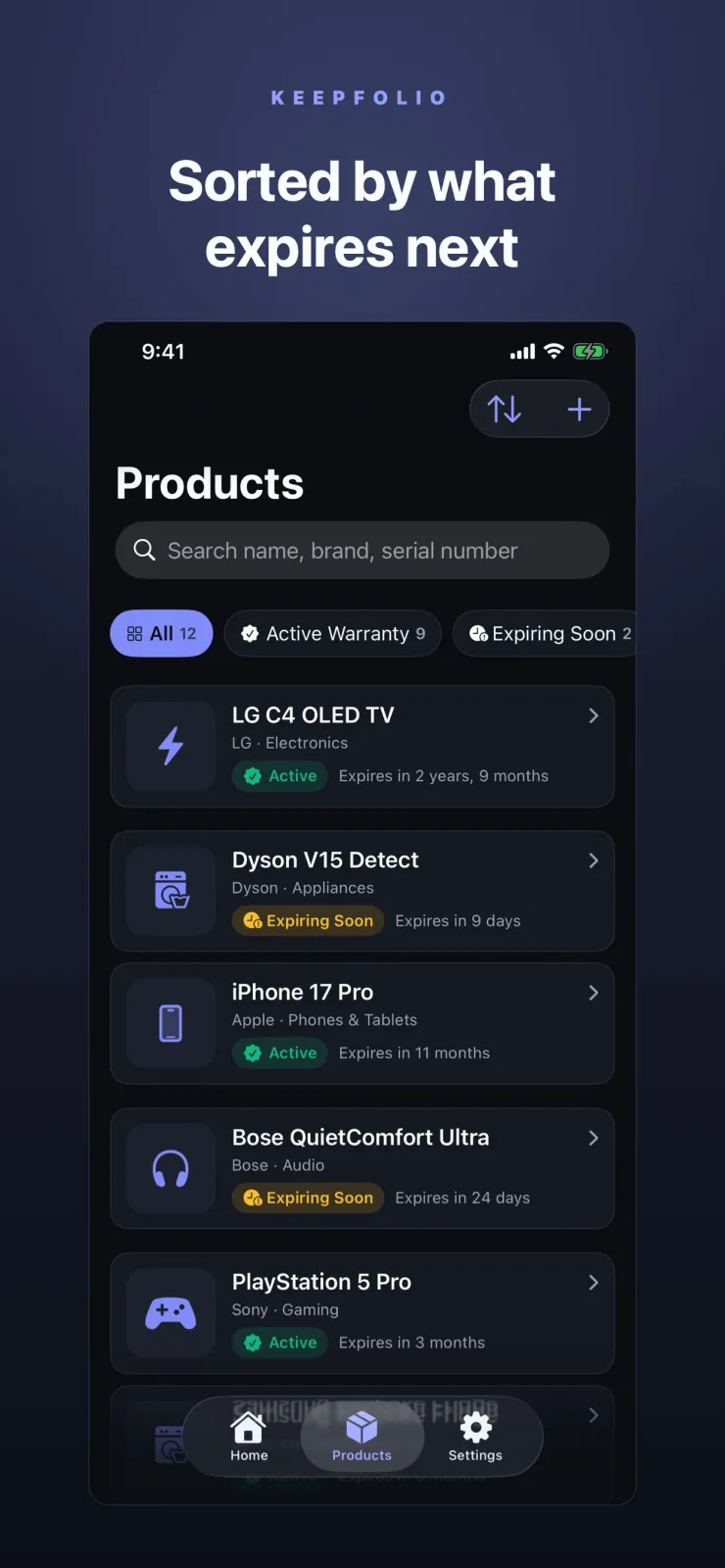
- Search anytime. Later, when you need to find an item, open the app and type the name in the search bar. Keepfolio finds it instantly because all data is stored locally on your device.
You can repeat these steps for every valuable item you own. The app does not limit how many items you add.
Storing receipts, invoices, and manuals
Document vault for images and PDFs
Keepfolio lets you attach receipts, invoices, warranty cards, and equipment manuals to each item. You can store them as high-resolution images or as multi-page PDF files. This means you can keep the full user manual of your camera or mixer inside the app, not just the bill. When you need to check a setting or a service number, you open the PDF right there.
Camera scanning with VisionKit
Paper receipts fade over time. Instead of keeping the paper, scan it immediately. Keepfolio has a built-in camera scanner powered by VisionKit. You point your iPhone or iPad camera at the receipt. The app captures the page edges and saves a clear image. You can scan multiple pages, such as a long invoice or a warranty booklet, and save them as one multi-page PDF.
Import files from your device
Sometimes the receipt comes by email as a PDF. You can import that file directly from your Mail app or Files app into Keepfolio. You do not need to take a photo of your screen. Just tap import, choose the file, and attach it to the correct item.
On-device OCR text recognition
Keepfolio reads the text inside your scanned documents using on-device processing. It looks for key details like the item name, the price, the date of purchase, and the store location. The app shows these as suggestions. You review each suggestion and tap to accept it. The OCR never overwrites your existing data and never invents details. You stay in control. Your records remain accurate.
Tracking warranties, dates, and currencies
Warranty expiration reminders
Every product has a warranty period. When it ends, you lose free repair coverage. Keepfolio lets you set the exact expiration date for each item. Before that date arrives, the app sends you a quiet notification on your device. This gives you time to request a repair, buy an extended warranty, or resolve any issue while the coverage is still active. You do not have to remember the date yourself.
Purchase details and serial numbers
For each item, you can store the purchase date, the store name, the serial number, and free-form notes. The serial number is often printed on the box or the device itself. Having it in the app helps when you call customer care. You can add these details immediately after buying, or fill them in later when you unpack the product at home.
Global currency support
If you bought an item online from another country, or while traveling abroad, the price may be in dollars, euros, or another currency. Keepfolio supports global currencies. When you enter the price, the app keeps that amount fixed in the original currency. Even if exchange rates change later, your record shows exactly what you paid at the time of purchase.
You can also store the store location. If you bought the item from a specific shop in your city, note the branch name. This helps if you need to return to the same store for service.
Who should use Keepfolio?
Many people lose money because they forget warranty dates or cannot find receipts. Keepfolio helps in these cases. Here are four concrete situations.
- You just bought a new smartphone or laptop for your family. The warranty lasts two years. You want to keep the invoice, serial number, and warranty card safe in one place so you can claim service if the screen breaks or the battery fails.
- Your bag was stolen or your house had water damage. You need to file an insurance claim. The insurance company asks for the purchase date, the price, and the serial number of your laptop or camera. Keepfolio gives you these details instantly from your phone.
- You run a small business from home and bought a printer, a mixer, or a sewing machine. Each item has a different warranty period from a different store. You use Keepfolio to track all of them separately so you know which one is still covered.
- You travel to Dubai or Singapore and buy electronics there. The receipts are in dirhams or Singapore dollars. You store them in Keepfolio with the original currency. Later, when you need to check what you paid in rupees, the record is there.
Privacy, offline use, and permissions
Keepfolio is built around privacy. The app is offline-first. You can add items, scan documents with the camera, import files, and search your records without any internet connection. You do not need Wi-Fi or mobile data to use any feature. This means you can use it in a village with poor network, or while traveling without a data plan.
Your personal data never leaves your device to be processed on external third-party servers. The OCR text recognition runs entirely on your iPhone or iPad. Your document scans and purchase history stay local. No outside company sees your receipts or purchase history.
To work, Keepfolio asks for specific permissions. It needs camera access to scan paper documents. It needs access to your photo library or Files to import existing images and PDFs. It needs notification permission to send you warranty expiration reminders. These are the only permissions the app uses.
If you enable iCloud sync, your database syncs securely across your iPhone and iPad through your private iCloud account. This happens silently in the background. You do not need to do anything. The sync uses your own Apple ID, not any outside server run by the developer. You can turn this sync off in settings if you prefer to keep data only on one device.
For full details on what data is collected and how it is handled, check the privacy policy inside the app or on the App Store listing.
Finding items fast and accessibility support
Instant local search
When you have many items, you need to find one quickly. Keepfolio has fast local search. You type a few letters of the item name, the store, or a note. The app searches all your stored items instantly and shows the matching results. You can search by price range or date if you remember roughly when you bought something. Because the search runs on your device, there is no delay waiting for a server.
Dark mode design
Keepfolio has a dark visual interface designed for iOS and iPadOS. It looks clean and modern. The dark theme is easy on the eyes, especially at night. The colors are chosen to reduce glare in low light.
Dynamic Type and VoiceOver
The app supports Dynamic Type. If you increase the text size in your iPhone settings, Keepfolio adjusts the layout so you can read comfortably. It also works with VoiceOver, the screen reader. You can navigate the app using voice commands if you have vision difficulties.
Works on iPhone and iPad
The layout adapts to your screen size. On iPad, you get more space to view documents. On iPhone, the app fits in your hand. The app uses the full screen on iPad Pro and works on older iPhone models too. Both versions sync through iCloud if you enable it.
Tips to get the most from Keepfolio
Here are practical ways to use the app in daily life.
Add the item name immediately after you pay at the shop. You can fill in the receipt photo and warranty date later when you reach home. This takes ten seconds and ensures you never forget the purchase.
Scan the warranty card and the receipt in the same scanning session. Attach both to the same item entry. This way, when the reminder comes, you have all documents ready to show the service center.
Set the warranty expiration date as soon as you enter the item. Do not leave it for later. The reminder only works if the date is in the app.
Use the notes field to write the customer care phone number or email of the brand. When you need to call for service, you can copy the number directly from Keepfolio.
If you buy something in a foreign currency, enter the price in that currency right away. Keepfolio keeps the original amount fixed, so you always know the exact cost even months later.
Search by store name if you forget what you bought. For example, type 'Croma' to see all items you purchased from that store.