What is TimeSaver?
Pick up your phone for two minutes and you can lose two hours. Between social media feeds, constant notifications, and habitual phone checking, staying productive is harder than ever. TimeSaver is a screen time tracker and distraction blocker built by Xvantage Infotech, an app studio based in Surat, Gujarat. It is available for Android on Google Play and for iPhone on the App Store.
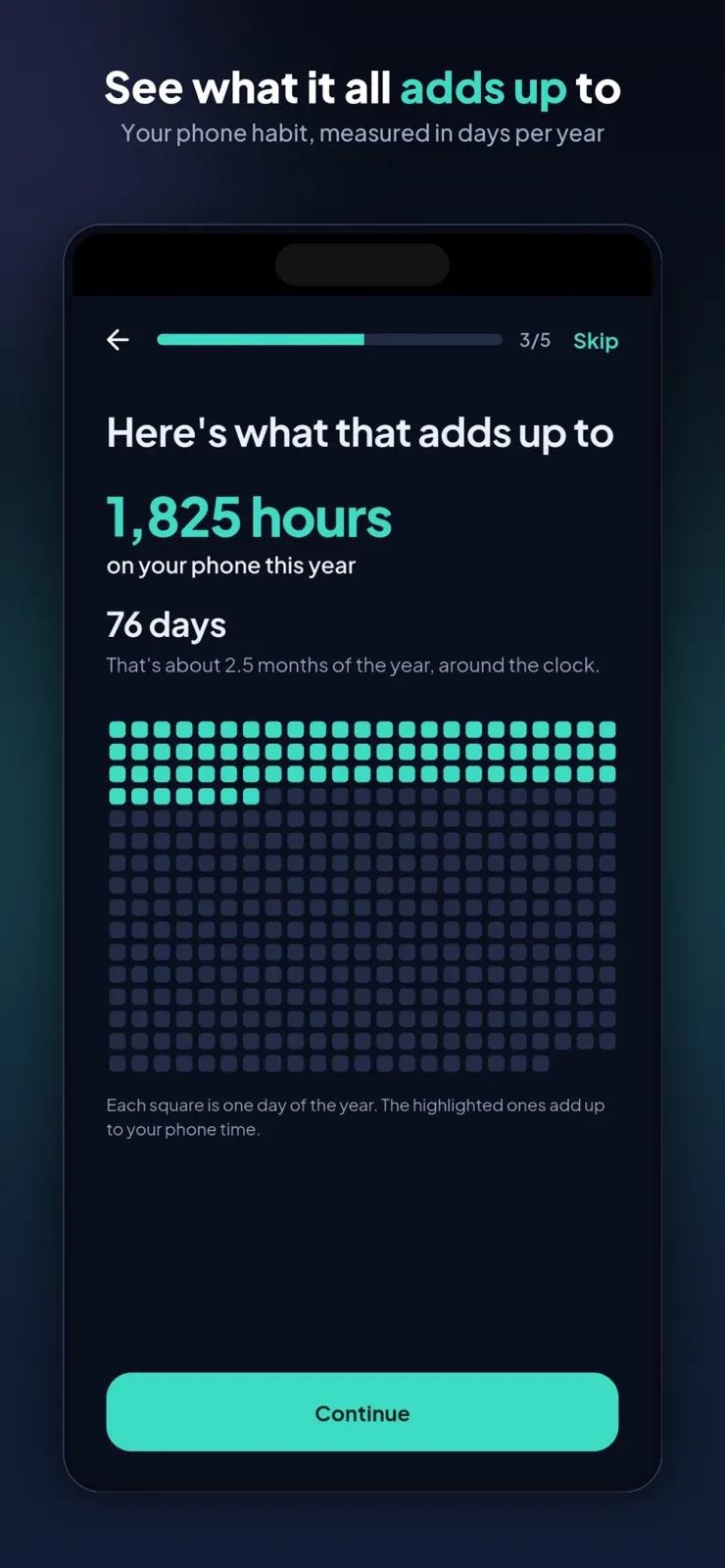
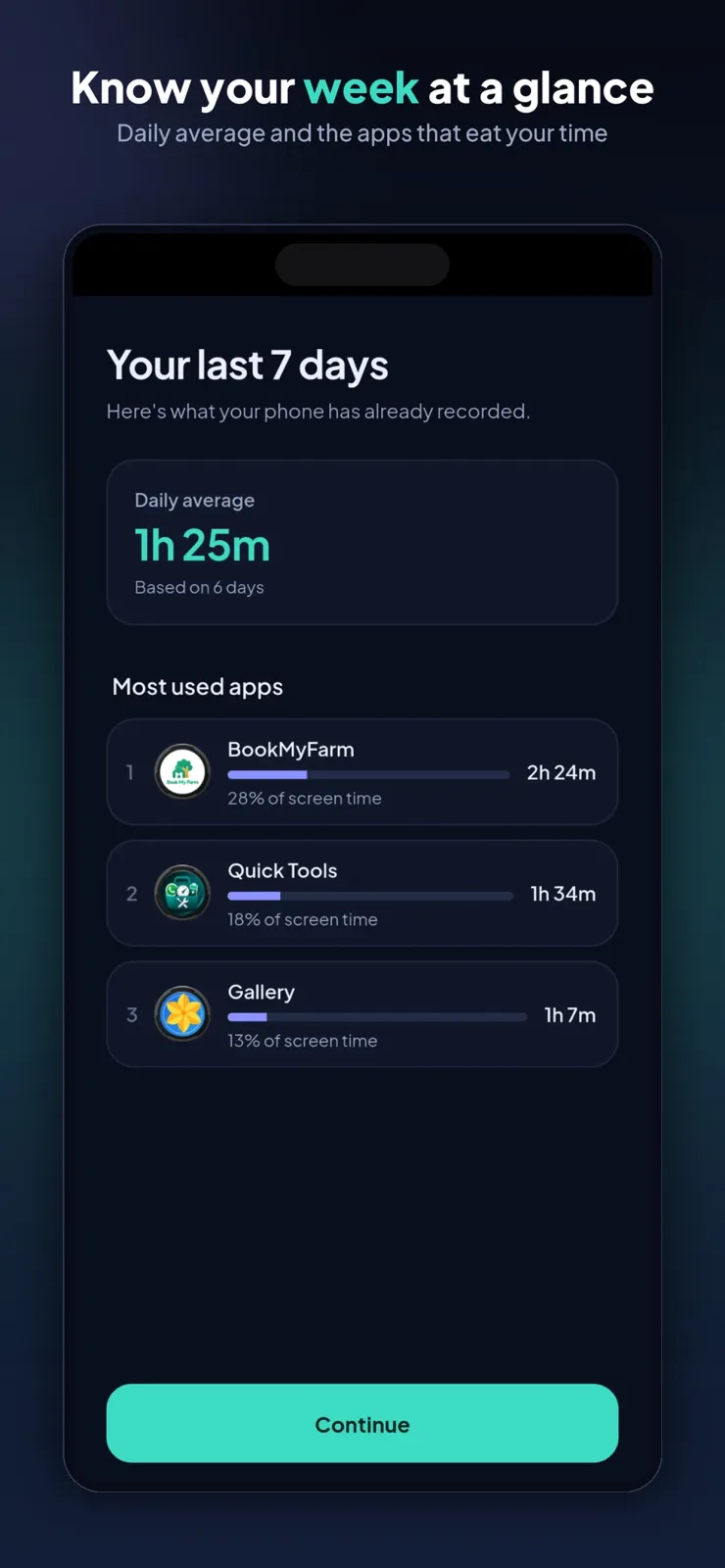
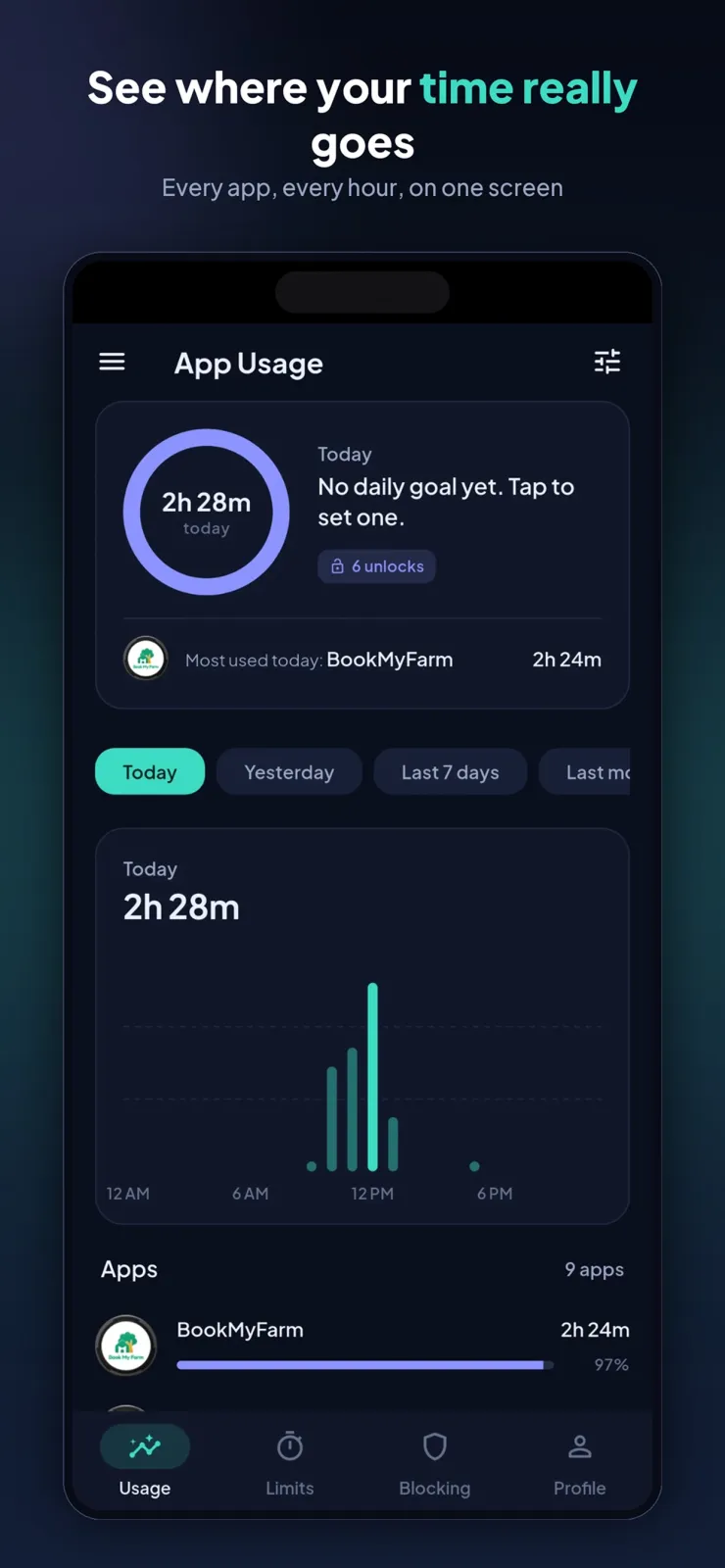
The app shows you exactly where your screen time goes, app by app. It tracks your daily and weekly usage, how long each session lasts, and how often you launch each app. You get clear visual breakdowns that help you spot the triggers behind mindless scrolling, so you know which apps to limit first.
TimeSaver does not just show data; it helps you change behavior. You can set daily limits on the apps that distract you most, like social media or games. When you reach your threshold, the app steps in to block it. You can also start focus sessions that lock down distracting apps while you study, work, or unwind in the evening.
You get gentle alerts as you approach your limits, giving you a nudge to put the phone down before you overshoot. All of this is designed to help you build healthier digital habits. And because privacy matters, TimeSaver processes your usage data directly on your device and never sells it to anyone.
How to use TimeSaver step by step
Setting up TimeSaver takes only a few minutes. Here is exactly what to do:
- Download the app. On Android, open Google Play and search for TimeSaver. On iPhone, open the App Store and search for TimeSaver: Save your time. Tap install and wait for it to finish.
- Open the app and allow the permissions it asks for. On Android, this includes the Accessibility Service, Google Sign-In, and Foreground Service so it can track usage and enforce blocks in the background. On iOS, follow the on-screen instructions to enable screen time tracking. You can change these later in your phone settings.
- Look at your dashboard. You will see your daily and weekly screen time broken down by app. The app also shows session durations and how many times you launched each app today.
- Identify your biggest time-wasters. Scroll through the list and pick the one or two apps that take most of your time, such as Instagram, YouTube, or a game.
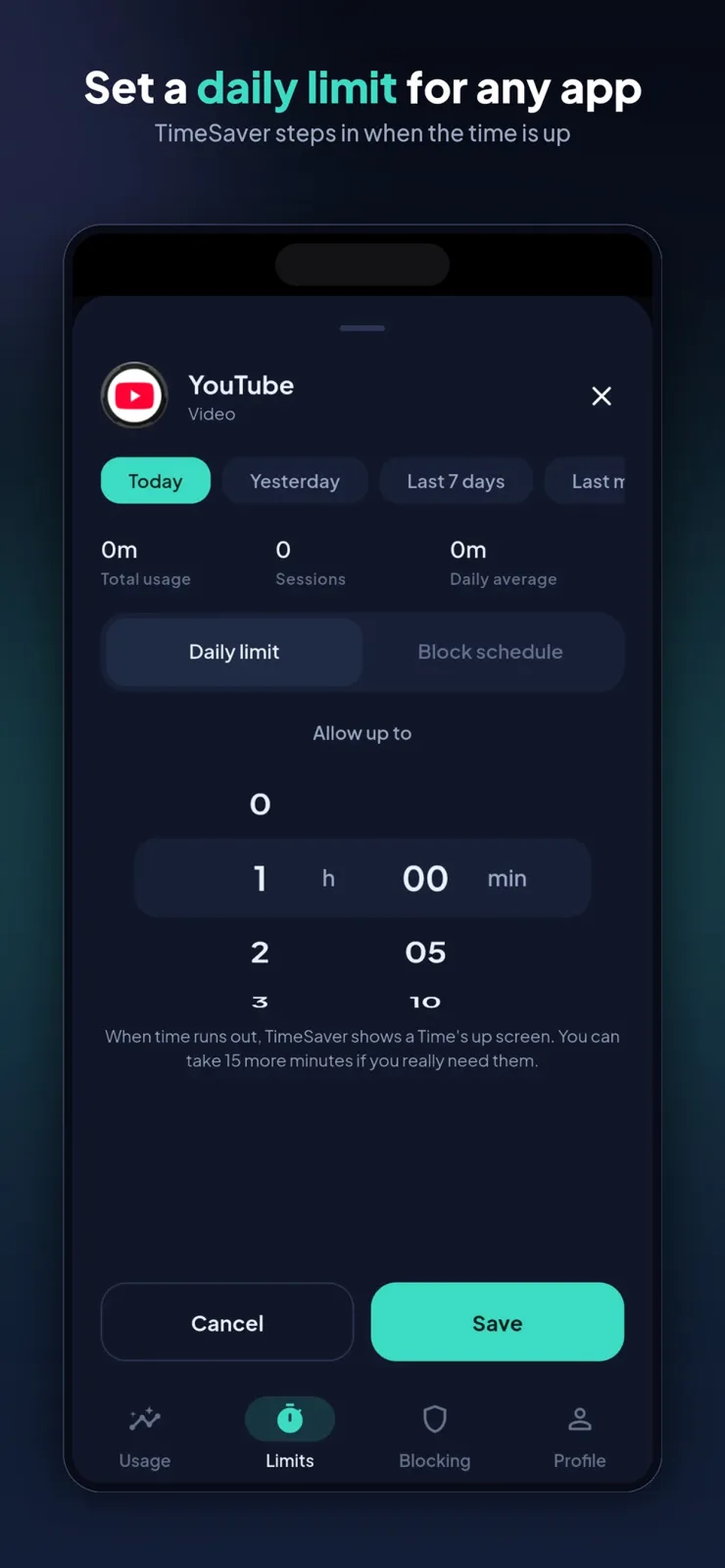
- Set a daily limit for each of those apps. Tap the app and enter a daily usage target in minutes. Choose a number that is realistic for you right now; you can lower it later.
- Set a schedule if you want. You can make limits apply only during certain hours, like 9 AM to 6 PM for work, or after 10 PM for sleep.
- Start a focus session when you need to concentrate. Choose how long the session lasts and which apps to block. TimeSaver will lock those apps until the session ends. On Android, if you try to open a blocked app, you will see a "Time's up" screen.
- Watch for alerts. As you approach your daily limit, TimeSaver sends a notification. Close the app when you get the nudge.
- Check your weekly trends every Sunday. Look at the charts to see if your screen time is going down and which apps are still high.
Every feature explained
TimeSaver packs several tools into one app so you can see your habits and fix them. Here is what each feature does and how it helps you.
Smart app usage tracker
This is the core dashboard. It tracks your daily and weekly screen time, app session durations, launch frequency, and behavioral trends. You get intuitive visual breakdowns, like charts and lists, that show exactly which apps take the most minutes. This helps you gain clarity on where your day goes and identify the triggers behind mindless scrolling, such as opening a social app every time you feel bored.
Custom app limits and schedules
You can set granular daily usage targets for your most distracting apps, games, or social platforms. For example, you might allow 30 minutes a day for a video app and 15 minutes for a game. When you reach your daily threshold, TimeSaver steps in to prevent burnout and keep your screen time in check. You can also set schedules, so a limit applies only during work hours or only in the late evening, giving you control over when the rules apply.
Powerful app blocker for deep focus
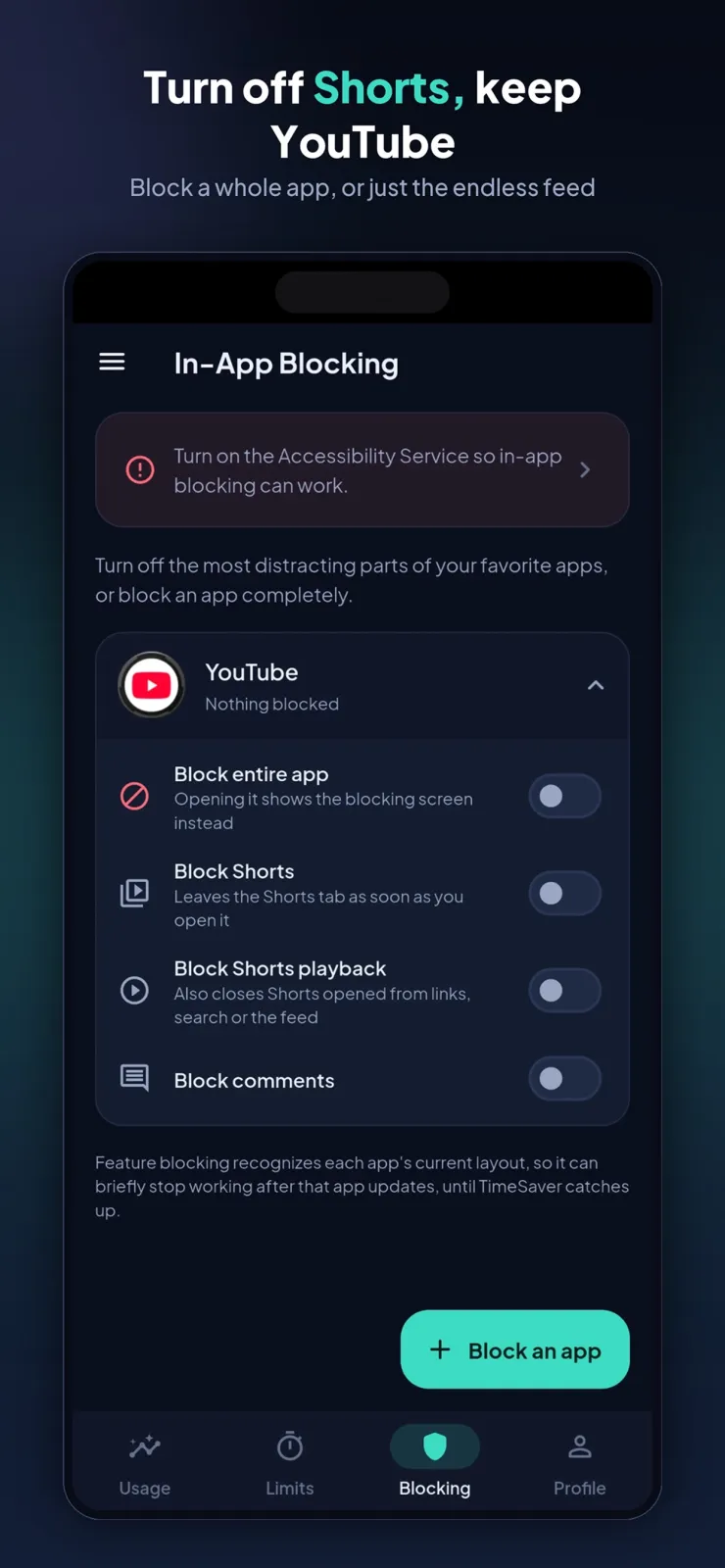
Need uninterrupted study or work blocks? Start a focused restriction session and TimeSaver locks down the distracting apps you selected. It creates intentional friction between the impulse to open the app and the app itself, helping you stay locked into deep work, study sprints, or evening unwind routines. On Android, when a block triggers, the app uses the Accessibility Service to press Back and show a "Time's up" screen over the blocked app or feature, so you cannot just swipe it away.
Actionable alerts and smart nudges
You receive timely reminders as you approach your self-imposed limits. These gentle notifications give you the nudge you need to put the phone down, close the loop, and be present in the real world. Instead of a hard block that surprises you, you get a warning first, which makes it easier to stop voluntarily.
Task tracking and productivity insights
On Android, TimeSaver also works as a task tracker. It offers real-time task tracking and time monitoring, productivity insights and analytics, smart reminders and notifications, and background task management. This means you can see not just how long you spend on apps, but also how much time you spend on productive tasks, all in one place.
Who TimeSaver is for
TimeSaver fits into daily life in several concrete situations. If any of these sound like you, the app is built for you.
Students preparing for exams
If you are a student seeking distraction-free study sessions and better exam prep, TimeSaver can help. Set limits on social media and games during study hours. Start a focus session before you open your books, and the app will block the distracting apps until your session ends. You will see your study time go up and your screen time on entertainment apps go down.
Remote professionals, creators, and developers
If you work from home and need deep work focus, TimeSaver creates a quiet space for you. Block messaging and social apps during your core work blocks so you can finish tasks without constant interruptions. The alerts will remind you if you start to drift into a time-wasting app.
Anyone fighting habitual phone checking
If you struggle with phone addiction, ADHD paralysis, or habitual screen checking, the blocks and nudges create a pause. That small friction is often enough to break the loop of picking up the phone without thinking. Over time, you rebuild the habit of choosing when to use your phone.
People who want better sleep
If you want to unplug in the evenings for better sleep and peace of mind, use schedules to block distracting apps after a certain hour, like 10 PM. This keeps your phone from pulling you into late-night scrolling when you should be winding down.
Privacy and permissions
TimeSaver is built privacy-first because your digital habits are personal. Unlike services that harvest user activity for ad brokers, TimeSaver operates on a strict privacy-first foundation.
Usage calculations and statistics are processed directly on your device. The app never reads your messages, in-app interactions, or sensitive content. Your usage history is never sold to third parties or used for external advertising. All data is processed locally on your phone, and no data is shared with third parties without your consent.
What the Android Accessibility Service does
On Android, TimeSaver asks for the Accessibility Service permission. This is not an accessibility tool for people with disabilities; it is the mechanism that enforces your limits and blocks. It detects which app is open so your limits and block schedules apply as soon as you open a limited app.
It reads the screen only in apps where you turned on a block, such as YouTube Shorts or Instagram Reels, to recognize that screen. When it recognizes a blocked screen, it presses Back and shows a "Time's up" screen over the blocked app or feature. TimeSaver does not collect, store, or share what is on your screen. You can turn this off at any time in Settings > Accessibility.
Other permissions on Android
- Accessibility Service: for app usage monitoring and enforcing the limits and blocks you set up.
- Google Sign-In: for account authentication.
- Foreground Service: for continuous background tracking so your screen time is counted even when the app is not open.
You can disable the Accessibility Service anytime in Settings > Accessibility, and the service can be toggled on or off. You can also uninstall the app at any time.
On iOS, TimeSaver runs as a standard app from the App Store. For full details on what data the app accesses on your specific device and how it is handled, check the privacy policy inside the app.
Tips to get the most out of TimeSaver
A few simple habits will help you stick with TimeSaver and actually reduce your screen time:
- Start small. Pick only your top one or two time-wasting apps and set limits on those. If you set limits on ten apps at once, you will likely ignore them all.
- Set realistic limits first. If you currently use an app for three hours a day, start with a two-hour limit. Lower it by 15 minutes each week until you reach your goal.
- Use focus sessions during your most productive hours. Block social apps while you work or study, then switch the block off when you are done so you do not feel trapped.
- Keep notifications turned on. The alert you get as you approach your limit is often enough to make you close the app voluntarily, which builds better habits than a hard block.
- Review your weekly trends every Sunday. Look at the charts to see which apps grew and which shrank. Spot patterns like late-night scrolling and add a schedule to cover those times.
- Use schedules to match your day. For example, block games during office hours but allow them in the evening if you want. This keeps the rules fair and easier to follow.
- If you need to use a blocked app for something important, finish the task quickly. On Android, the "Time's up" screen will appear over the blocked feature, reminding you to get back to what matters.
TimeSaver on Android and iOS
You can download TimeSaver on both major mobile platforms. On Android phones, get it from Google Play. On iPhone, get it from the App Store under the name "TimeSaver: Save your time".
Both versions include the smart app usage tracker, custom app limits and schedules, the focus blocker, and the alerts. The Android version uses the Accessibility Service described above to detect open apps and enforce blocks with a "Time's up" screen. The iOS version provides the same tracking and limiting features within Apple's system.
Whether you use Android or iOS, you get the same core tools to see where your time goes and take it back. Download TimeSaver today, set your first limit, and reclaim the hours that matter most.