What is Savely?
Savely is an all-in-one utility app built by Xvantage Infotech, an app studio based in Surat, Gujarat. You can download it on any Android phone from Google Play. As of the latest store data, more than 500 users have already installed Savely on their devices.
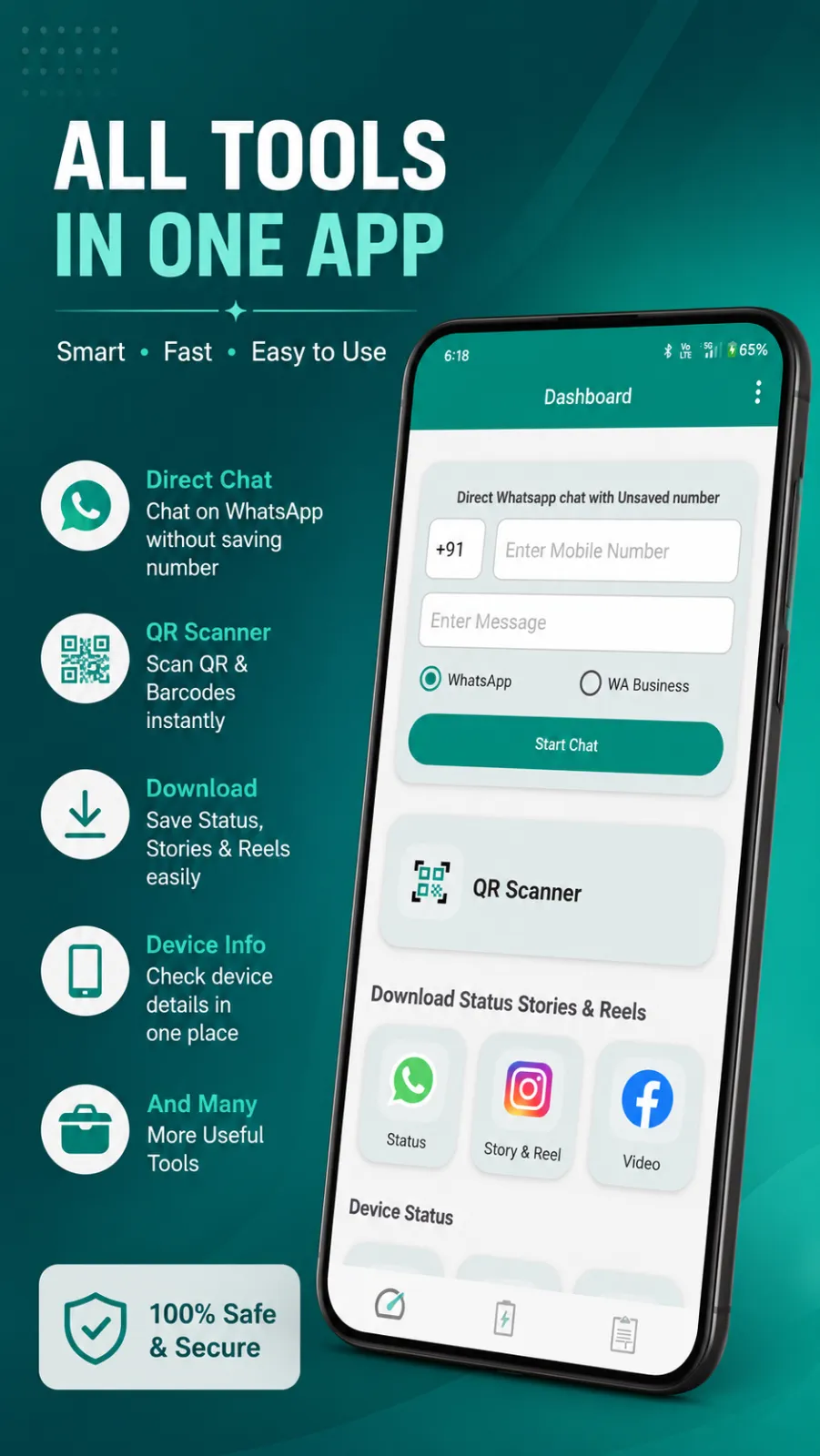
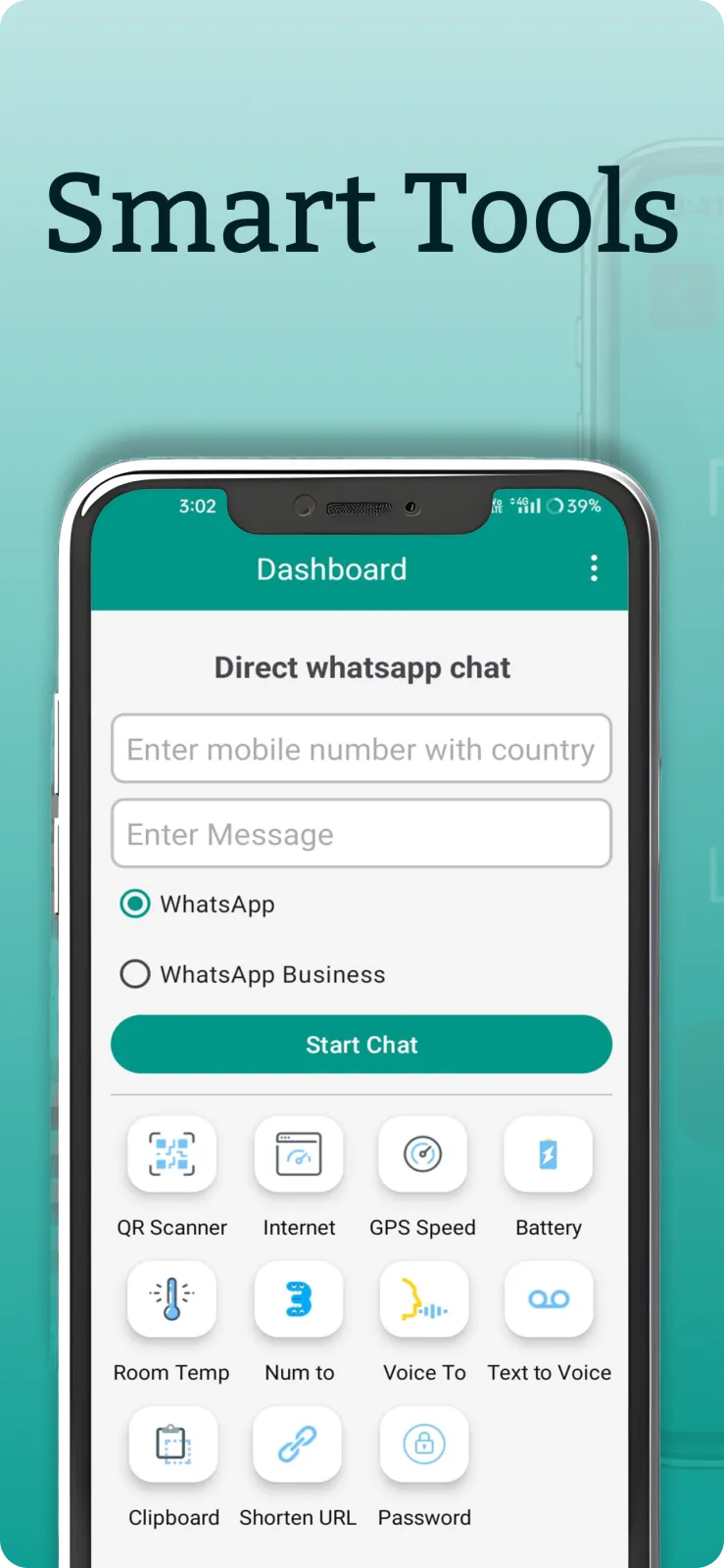
Instead of keeping a folder full of single-use apps, Savely puts many everyday phone tools in one place. You get WhatsApp direct chat without saving numbers, a status saver for WhatsApp photos and videos, a QR scanner, an internet speed test, a GPS speed meter, detailed battery information, a room temperature checker, voice to text, text to speech, a clipboard manager, a password generator, a URL shortener, and more. All of this comes in one small download that does not take up much space.
The app has a clean and simple interface. You open Savely, see the list of tools, tap the one you need, and start using it immediately. There is no complicated sign-up or long tutorial to sit through.
Every tool inside Savely, explained
Direct WhatsApp Chat
You can send a WhatsApp message to any phone number without adding it to your contacts first. Open this tool inside Savely, type the full number including the country code, and tap the button to open the chat. WhatsApp will open with that number ready to message. This is useful when you want to contact a delivery person, a shopkeeper, a cab driver, or a new client, but you do not want to save their number permanently in your phone.
WhatsApp Status Saver
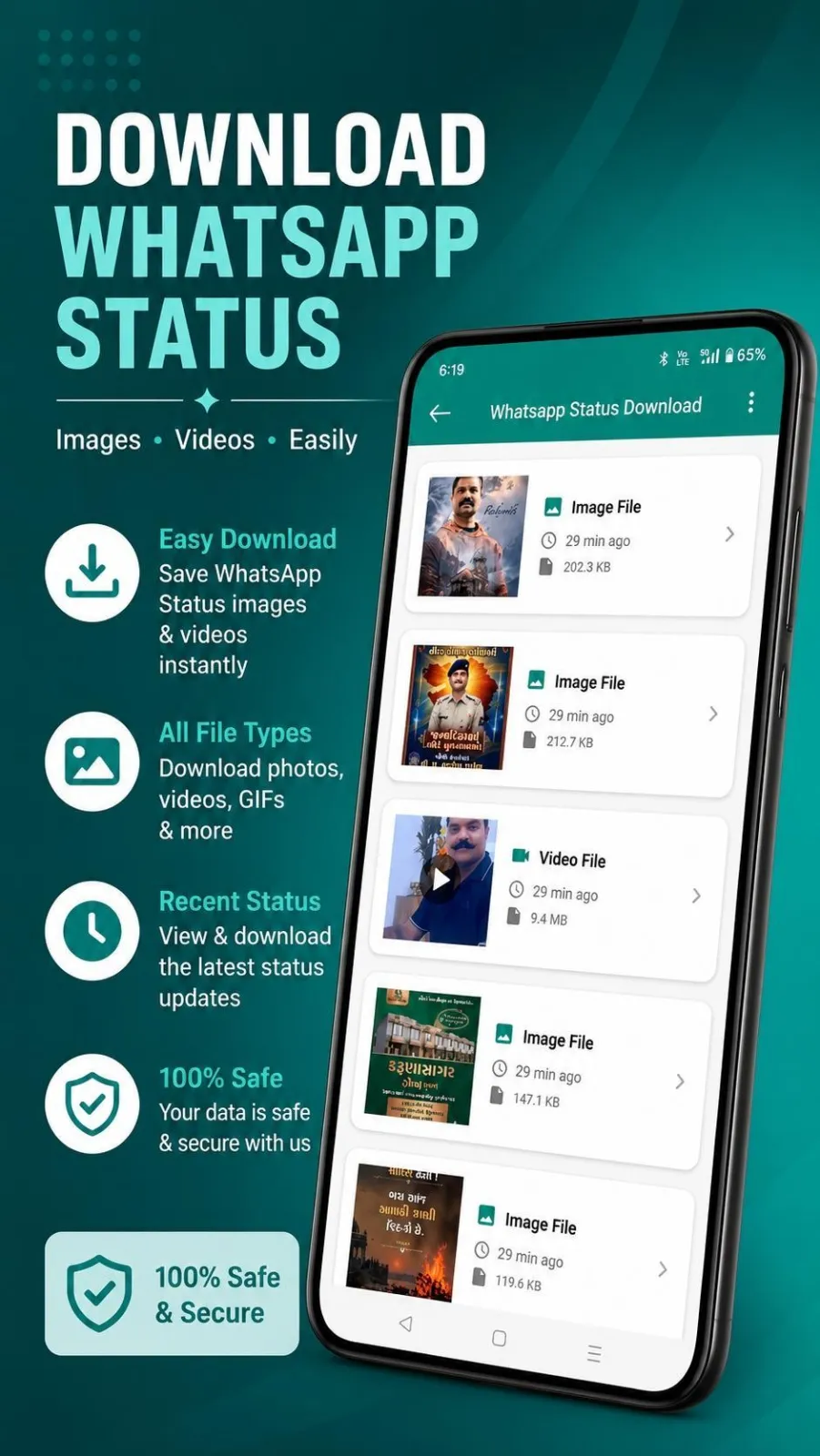
WhatsApp statuses disappear after 24 hours, but Savely lets you keep the ones you like. Open the Status Saver tool and grant storage permission if asked. The app shows you the supported status photos and videos from WhatsApp. Tap the one you want and press save. The file is stored on your device, so you can view it later, share it with others, or post it on your own social media even after the original status is gone.
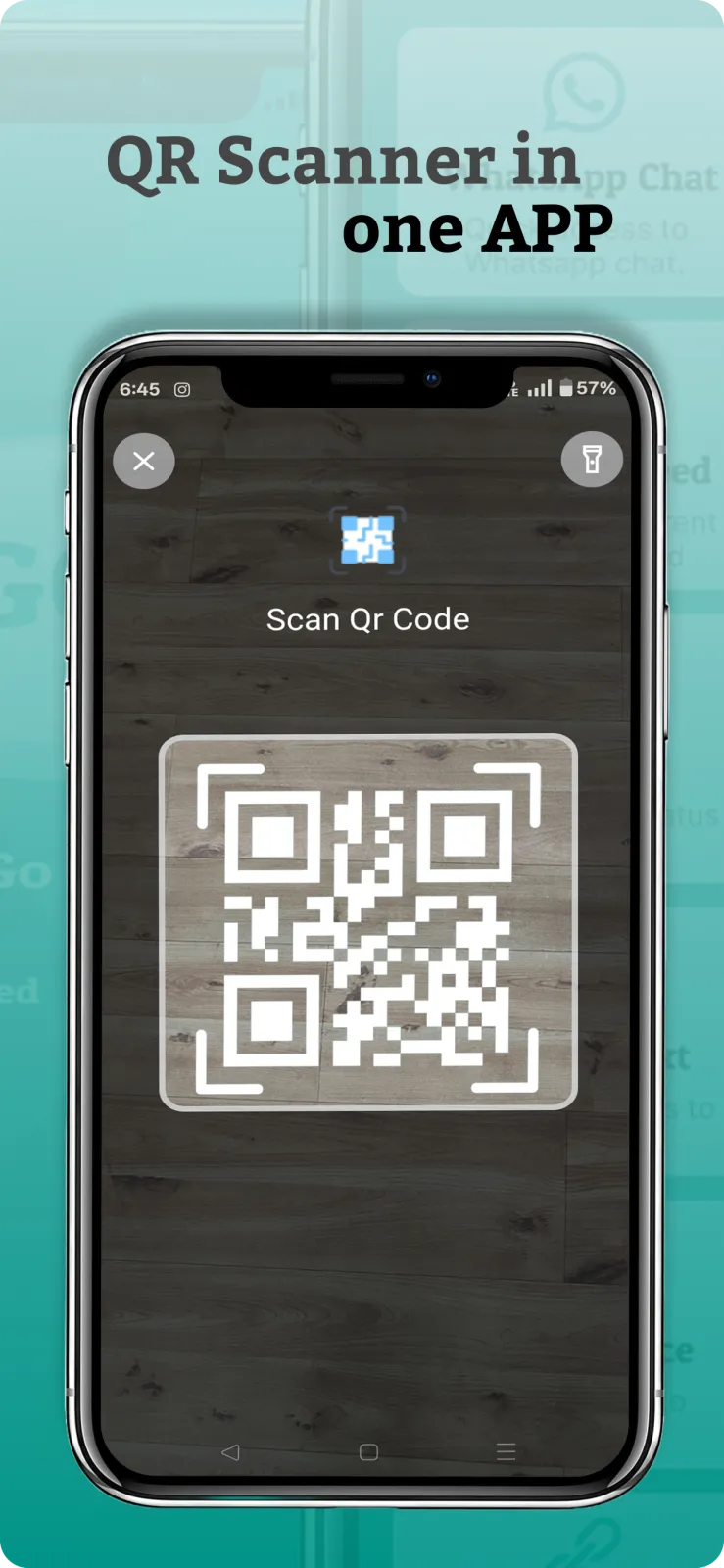
QR Code Scanner
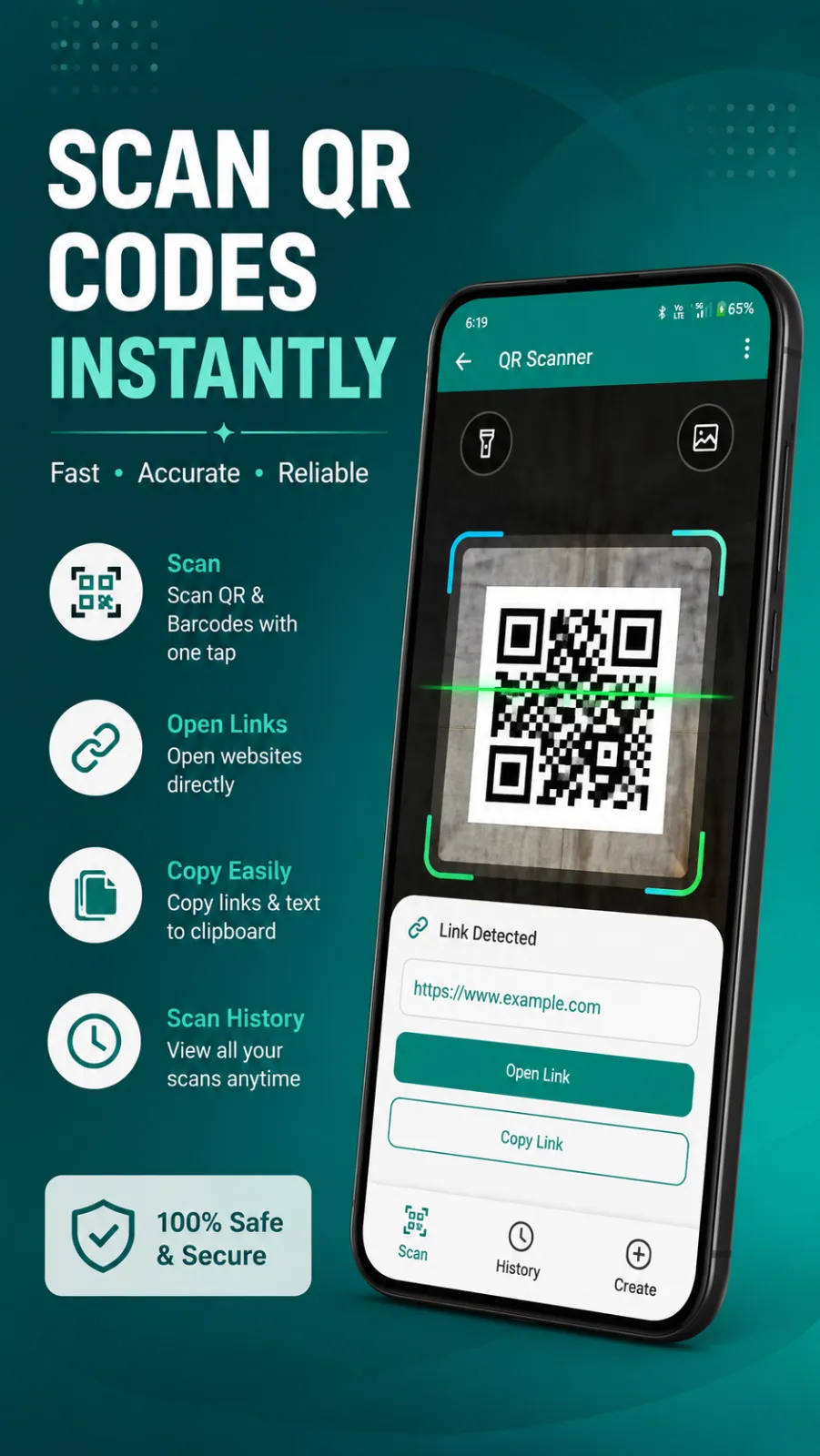
You can scan any QR code quickly using your phone camera. Open the scanner in Savely and point your camera at the code. The app reads it instantly and shows you what is inside. You can scan codes on product packaging, advertisement posters, restaurant menu cards, Wi-Fi stickers, or payment QR codes. The result may be a website link, plain text, contact details, or a Wi-Fi password that you can copy.
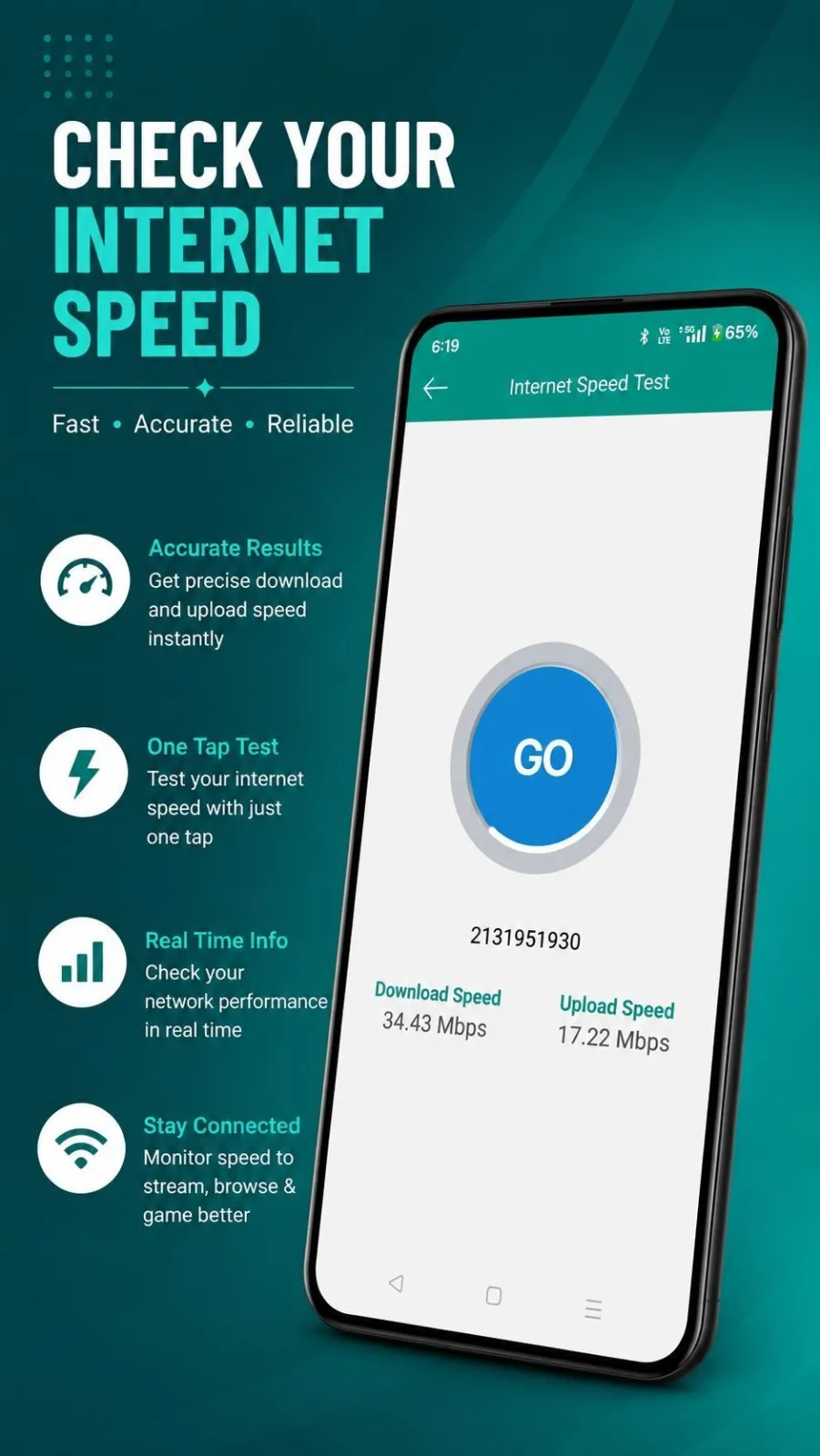
Internet Speed Test
Run a quick test to check your current download speed. Open the tool and tap start. Savely measures how fast your internet connection is right now and shows the result in megabits per second. This helps you understand if your Wi-Fi at home or your mobile data is working well. You can use it before downloading a large file, starting a video call, or streaming a movie to make sure your connection can handle it.
GPS Speed Meter
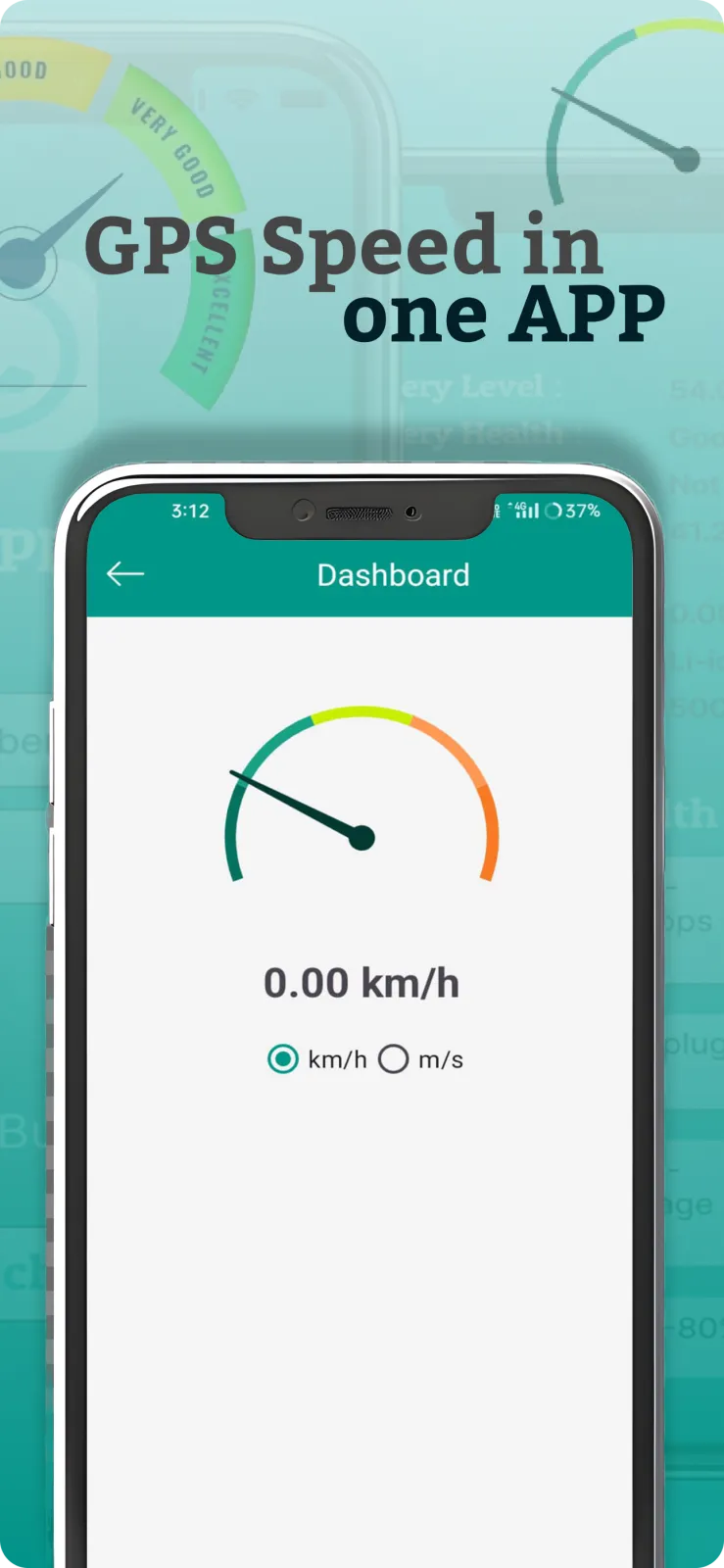
Savely uses your phone's GPS receiver to show your current speed in real time. Open the GPS Speed Meter and the app starts tracking your movement. You can use it while driving a car, riding a bike, cycling, walking, or traveling in a train. The speed reading updates continuously on the screen, so you always know exactly how fast you are moving at any moment.
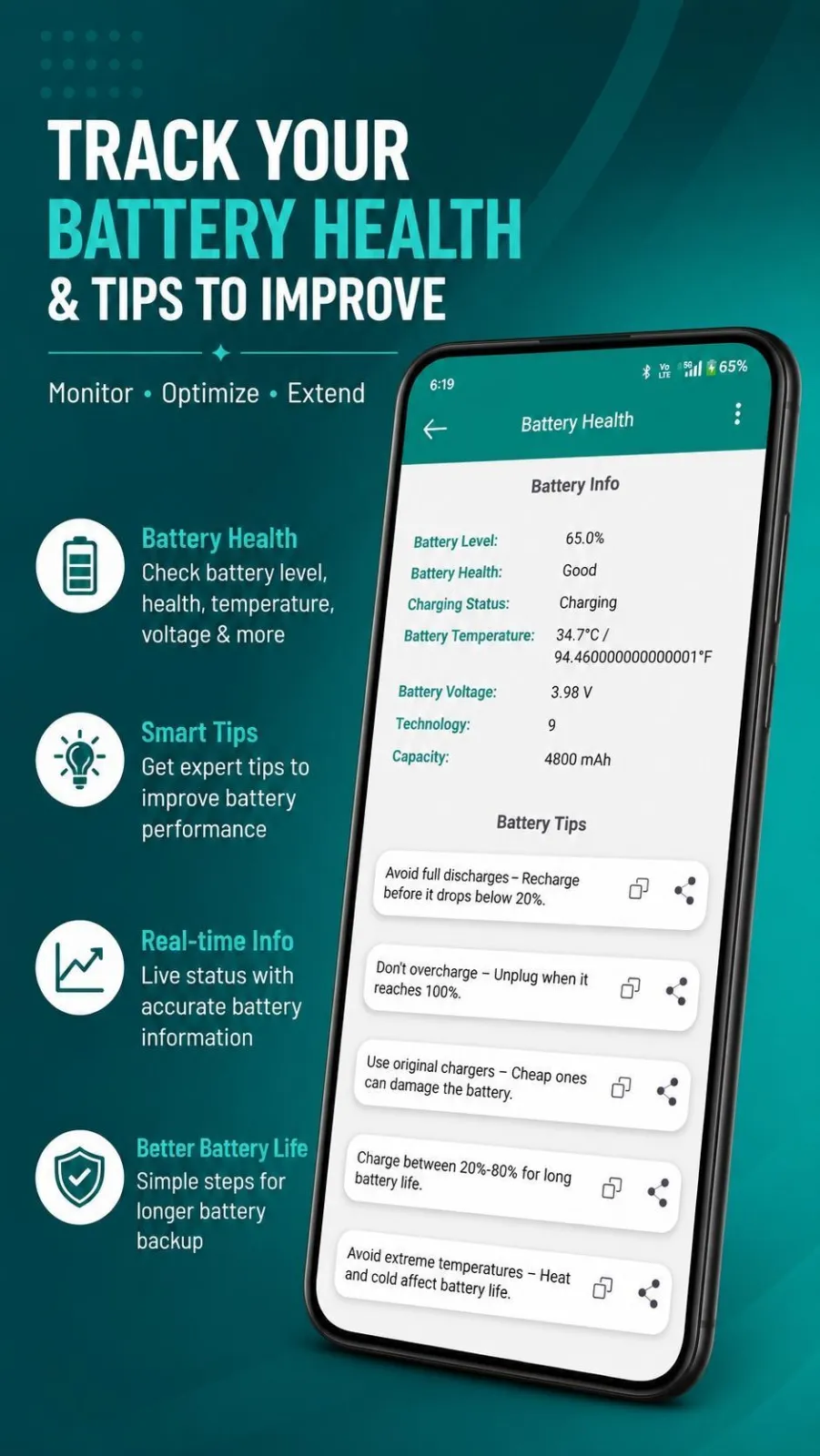
Battery Status and Information
You can see detailed information about your phone's battery. Open this tool and Savely reads the data your device provides. You will see the current battery level, whether the phone is charging or not, the battery temperature, the voltage, and the battery technology used. This is helpful for checking if your battery is charging properly and for spotting if the temperature is getting too high while you charge your phone.
Room Temperature
If your Android phone has the necessary sensors, Savely can estimate the temperature of the room you are in. The tool reads the sensor information available on your device and calculates an approximate room temperature. This is useful when you want to know if a room feels too hot or too cold, or when you are checking the temperature in a storeroom, office cabin, or bedroom.
Voice to Text
Instead of typing on the keyboard, you can speak and let Savely write the words for you. Open the Voice to Text tool, tap the microphone, and start speaking. The app converts your spoken words into text on the screen in real time. You can use this for writing notes, sending WhatsApp messages, doing Google searches, or filling forms when typing is inconvenient.
Text to Speech
You can make your phone read any written text aloud. Copy or type the text you want to hear, paste it into the Text to Speech tool, and tap play. Your phone will speak the words out loud. This is helpful when you are driving, cooking, or resting your eyes and want to listen to a long message, an article, or a document instead of reading it.
Clipboard Manager
Every time you copy text on your phone, Savely saves it in a history list. Open the Clipboard Manager to see everything you have copied recently, such as addresses, OTPs, links, or notes. You can tap any item in the list to copy it again instantly. This saves you from losing important text when you copy something new over the old one.
Password Generator
Create strong and random passwords for your online accounts with one tap. Open the Password Generator and choose the length and type of characters you want. Savely creates a complex password that is hard to guess. Use a different generated password for each website or app, like your email, banking, or shopping accounts, to keep your accounts more secure.
URL Shortener
Long web links can look messy in chat messages. Open the URL Shortener, paste the long link, and tap shorten. Savely converts it into a short, compact link that is easy to share. The short link still points to the same original webpage, so when someone taps it, they reach the correct page.
More Useful Tools
Besides the main tools listed above, Savely includes additional everyday utilities. These extra features are designed to handle common phone tasks without needing another app. You can find them on the home screen of Savely along with the other tools, giving you quick access to a full toolbox of utilities in one place.
How to use Savely step by step
- open your Android phone and open the Google Play Store app. In the search bar at the top, type Savely and look for the app published by Xvantage Infotech. Tap the Install button and wait a few seconds for the download and installation to complete.
- Once installed, tap Open or find the Savely icon in your app drawer and tap it. The app will launch and show you the home screen with all the tools arranged in a list.
- Look at the tool you need right now. For example, if you want to message someone on WhatsApp without saving their number, tap Direct WhatsApp Chat. If you want to scan a code, tap QR Code Scanner.
- Follow the instructions shown on that tool's screen. For Direct WhatsApp Chat, enter the full phone number with country code and tap the chat button. For the QR scanner, point your camera at the code and hold steady until it reads.
- Use the result immediately. Save the status video to your gallery, copy the scanned link, check your internet speed number, or copy the generated password.
- When you are done, press the back button or the home button to return to the Savely home screen. You can then tap another tool to use it, all without leaving the app.
Who should download Savely
Savely is built for everyday Indian smartphone users who want to get small tasks done quickly. Here are four concrete situations where it fits perfectly.
- You run a small business in Surat and receive order messages on WhatsApp from new customers every day. You use Direct WhatsApp Chat in Savely to reply to them instantly without saving each customer's number in your contact list, keeping your contacts clean.
- You see a useful tutorial video or a funny clip in a friend's WhatsApp status. You open the Status Saver in Savely, find that video, and save it to your phone before it disappears after 24 hours, so you can watch it again or share it with family.
- You are driving your car on the highway and want to check your speed without installing a separate speedometer app. You open the GPS Speed Meter in Savely and watch the live speed reading on the screen while keeping your eyes on the road.
- You are in the kitchen cooking and your hands are wet or busy. You use Voice to Text in Savely to dictate a WhatsApp message to your family or a note to yourself, instead of trying to type on a wet screen.
Permissions and privacy
Savely asks for only the permissions that its tools need to function. The QR Code Scanner needs camera access so it can read codes. Voice to Text needs microphone access to hear your voice. The GPS Speed Meter needs location access to calculate your speed using GPS. The WhatsApp Status Saver needs storage access to save photos and videos to your device. The Clipboard Manager needs clipboard access to keep a history of the text you copy.
Savely does not request permissions that its features do not use. For complete details about what data the app collects, how it is used, and how it is protected, you should read the privacy policy. You can find the privacy policy link on the Savely page on Google Play or inside the app settings.
Tips for using Savely every day
- Run the Internet Speed Test twice: once when connected to your home Wi-Fi and once on mobile data. Compare the download speeds to know which connection is faster at your location.
- After you copy an important address, OTP, or link, open the Clipboard Manager in Savely right away. Tap the item later to paste it again, so you do not lose it when you copy something else.
- Use the Password Generator every time you create a new account on a shopping site or app. Copy the strong password and save it in your notes or a password manager for that account.
- Check the Battery Status tool once a week. Look at the battery temperature and voltage readings. If the temperature shows a very high number while charging, unplug the charger and let the phone cool down.
- Use Text to Speech to listen to long WhatsApp messages or articles when you cannot read them, such as while walking, commuting, or cooking.
- Before sending a long product link or a Google Maps location to a customer, use the URL Shortener in Savely. The short link looks neat in the chat and is easier to tap.
Savely on Google Play
Savely is published on Google Play under the name Savely: Video & Status Saver. It is designed for Android phones and tablets running the Android operating system. The app file is lightweight, so it does not consume much storage space or slow down your device.
According to the latest Google Play data collected in November 2026, more than 500 users have installed Savely. The developer, Xvantage Infotech from Surat, keeps the app focused on providing useful functionality with a clean interface and no unnecessary complexity.
To get Savely on your phone, open Google Play, search for Savely, verify that the developer name shows Xvantage Infotech, and tap Install. After installation, open the app and start using any tool you need.